Clean One CSV Export, Choose the Right Chart, and Check the Message Before the Meeting
Use a CSV chart tutorial when one exported table needs to become a readable visual quickly without rebuilding the dataset in a full spreadsheet workflow.
Open CSV Chart Maker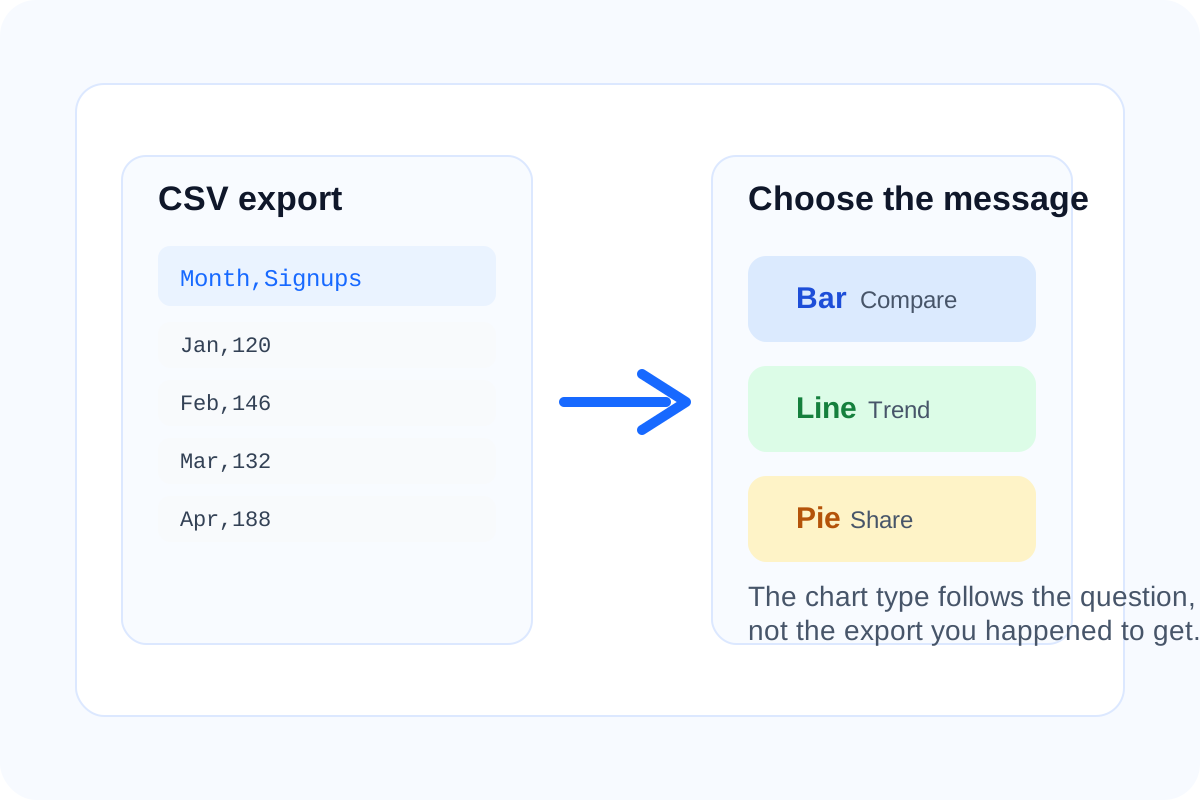
A CSV export is often good enough for one fast decision, but only if you turn it into a chart that matches the question. The mistake is jumping straight from a raw table into a favorite chart type. The useful move is cleaning the small export, choosing the chart based on the message, and checking whether the visual really answers the meeting question before anyone sees it.
Start by cleaning the export, not redesigning it
- Keep one label column and the numeric values that matter for the comparison.
- Remove rows that are totals, notes, or placeholders rather than actual data points.
- Shorten long labels so the chart can stay readable without losing meaning.
- Check that commas and decimal values survived the export exactly as intended.
Choose the chart after you know the question
- Use a bar chart when the meeting is really about ranking or category comparison.
- Use a line chart when the question is about change over time.
- Use a pie chart only when the question is one-share-versus-the-rest and the category count is small.
- If none of those fit comfortably, the problem may be the dataset, not the chart tool.
A short CSV chart tutorial
- Paste the cleaned CSV into the chart maker.
- Switch between chart types until the visual matches the decision the audience needs to make.
- Inspect labels, missing values, and scale before downloading anything.
- Export only after the chart is easy to read without extra narration from the person presenting it.
Why this is faster than rebuilding the spreadsheet
If the goal is one chart for one meeting, a lightweight CSV workflow avoids the overhead of formatting a whole workbook just to prove one pattern. The chart does not need to become the permanent reporting artifact. It only needs to make the underlying message visible in time for the decision.
Related UtilFlow moves
If the export needs more rigid table cleanup first, use Table Generator or CSV to JSON depending on where the data must go next. If the final answer needs a more specialized visual, move from the CSV chart preview into Bar Chart, Line Chart, or Pie Chart once the message is settled.
FAQ
What should I remove from a CSV before charting it?
Remove totals, notes, blank rows, and any labels or columns that do not belong to the specific comparison you want to show.
How do I pick the right chart type from a CSV export?
Choose the chart type based on the question: categories usually want bars, time usually wants a line, and part-to-whole only sometimes wants a pie.
When is a quick CSV chart enough?
It is enough when one export only needs to support one meeting, note, or lightweight reporting decision rather than a polished dashboard workflow.