Turn iPhone HEIC Photos into One Small PDF Packet Without Reuploading Each Step
Use a chained workflow when phone photos must become one portal-ready PDF: convert HEIC if needed, resize the images for the actual destination, build the PDF packet, and compress only when the final file still misses the size limit.
Open Images to PDF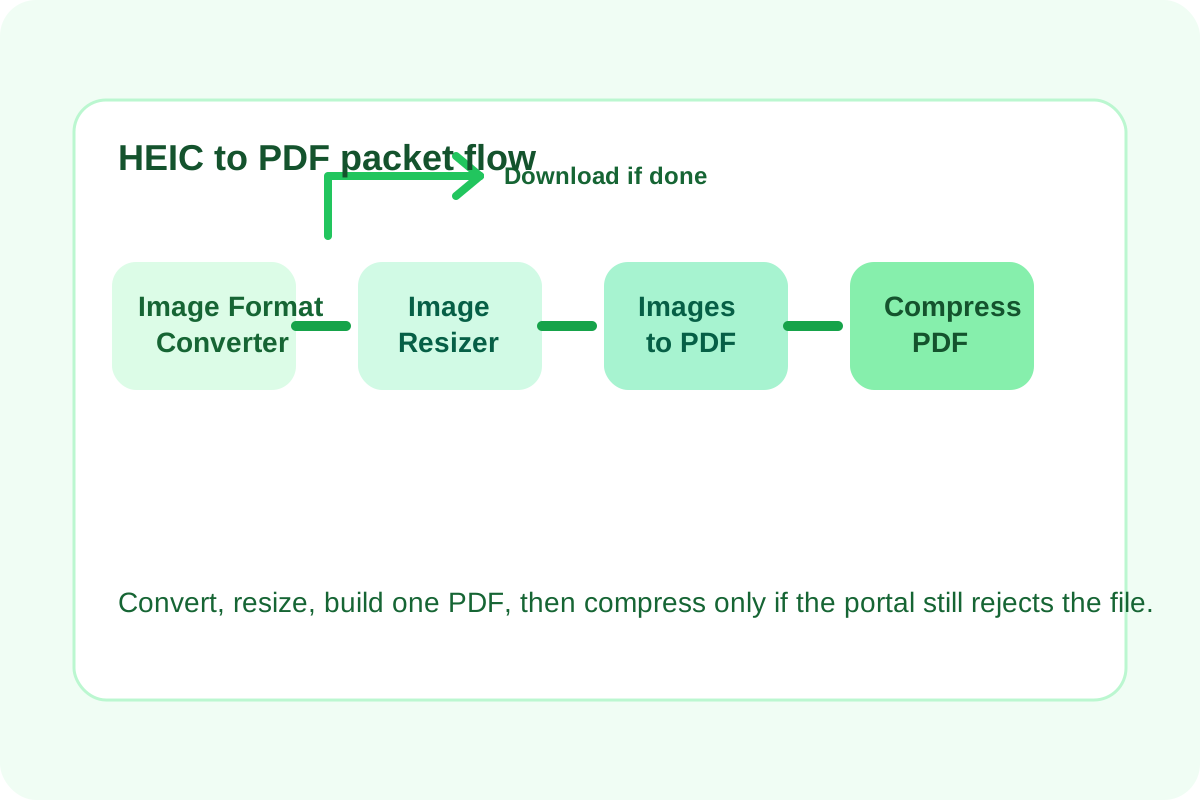
A phone-first document workflow often breaks at the exact moment it should become simple. The photos are already captured, but the portal wants one PDF, the original HEIC files are awkward for the destination, and the finished packet still might need to shrink before upload. This chained workflow keeps the order clean so you do not reupload or over-edit by habit.
The tool order
- Start with Image Format Converter if the incoming files are HEIC or another format the next step should not carry forward.
- Continue to Image Resizer so the images match the actual destination width or page need before they become a PDF.
- Move into Images to PDF when the selected images are ready to become one packet.
- Finish with Compress PDF only if the built packet is still too large after the format and size cleanup already happened.
Why the Google Trends terms matter here
The rising Google Trends related-query terms heic to pdf and compress pdf to 1mb free describe the same real-world chain from different ends. The first term reflects the source problem: phone-native images need to become an accepted document. The second reflects the destination problem: the finished document still has to squeeze through a size gate.
What to check after each step
- After Image Format Converter: confirm the converted files still look correct and that transparency or color details did not become a new issue.
- After Image Resizer: confirm the text and edges remain readable at the new dimensions and that you did not keep unnecessary width.
- After Images to PDF: confirm the pages are in the right order and the packet now behaves like one document.
- After Compress PDF: confirm the final size now clears the target limit and that the document still reads cleanly on reopen.
When to stop and download
- Stop after Image Format Converter if the next system only needed a more compatible image format and not a PDF.
- Stop after Image Resizer if the resized images are themselves the final deliverable for chat, docs, or review.
- Stop after Images to PDF if the packet already fits the destination limit and no further shrinking is needed.
- Use Compress PDF only when the final packet still fails the upload after the earlier steps already removed the obvious weight.
Why this order avoids wasted quality loss
If you compress the PDF too early, you are shrinking a file that still contains oversized images or an unnecessary source format burden. Converting and resizing first removes avoidable weight before the final PDF compression has to make any quality tradeoff.
Related UtilFlow moves
If the packet needs page numbers after assembly, continue into Add Page Numbers before the final submission. If one image has extra margins or background clutter, insert Image Cropper before the resize step so the PDF does not carry pixels that never needed to exist.
FAQ
Which PDF trend terms did this workflow use?
It uses the rising Google Trends related-query terms heic to pdf and compress pdf to 1mb free to frame the source-side and destination-side parts of the same phone document workflow.
Why resize before creating the PDF?
Because oversized source images add weight into the packet before compression even starts, and resizing earlier often reduces that weight with cleaner control.
When should I skip the final Compress PDF step?
Skip it when the packet built by Images to PDF already fits the upload limit and still looks clean, because extra compression would only add unnecessary quality loss.