Prep a Board Packet: Remove Draft PDF Pages, Reorder Exhibits, Number the Set, and Compress PDF Without Losing Quality
Use a chained workflow when one board or committee packet is almost ready, but still contains draft pages, out-of-order exhibits, missing page references, and a file size problem that should be solved only after the packet itself is clean.
Open Delete PDF Pages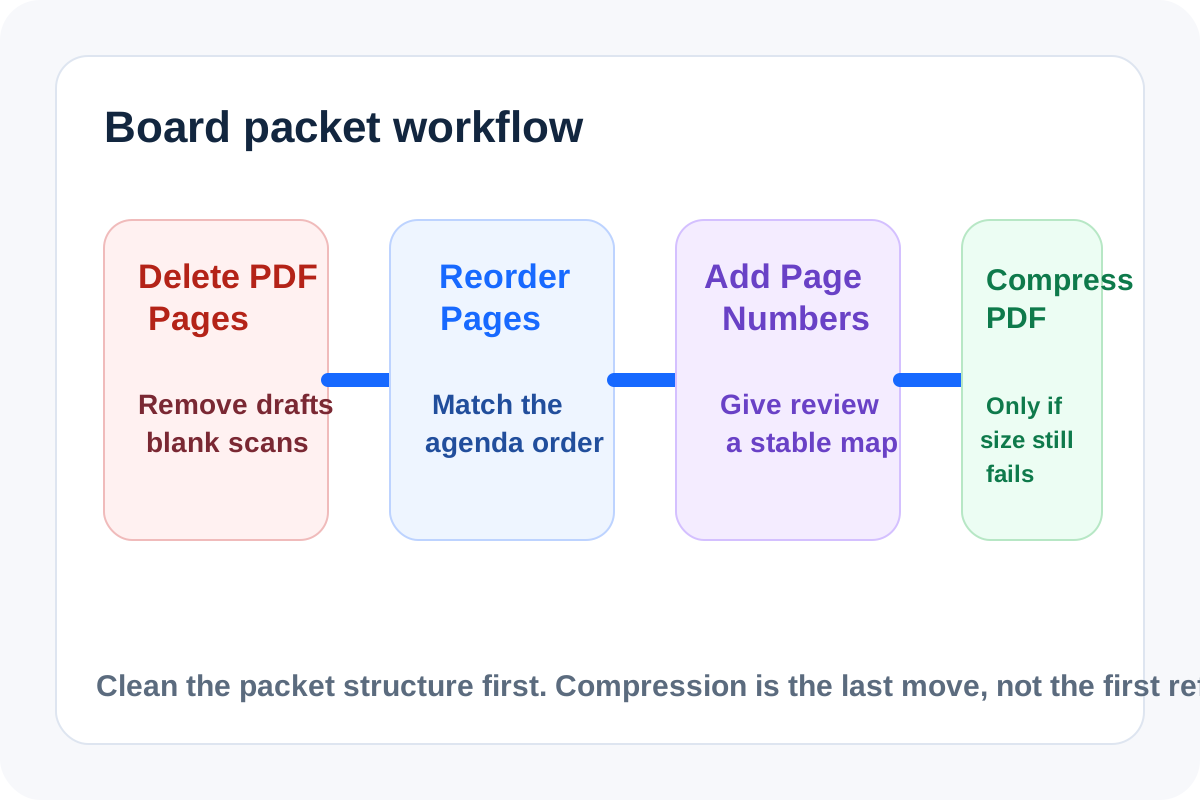
A board packet usually breaks at the last mile, not in the middle. The draft cover sheet is still inside, one exhibit is out of order, reviewers need stable page references, and someone reaches for compression before the packet itself is even correct. This chained workflow keeps the sequence clean: remove the pages that should not travel, fix the exhibit order, add visible numbering for discussion, and compress PDF without losing quality only if the final cleaned packet still fails the portal or email limit.
The tool order
- Start with Delete PDF Pages to remove draft covers, blank scans, duplicate appendices, or confidential pages that do not belong in the shared packet.
- Continue to Reorder PDF Pages when the surviving exhibits now need to match the agenda, minutes, or filing sequence.
- Move to Add Page Numbers to PDF once the packet order is final enough that reviewers can reference page numbers in comments and meeting notes.
- Use Compress PDF only if the cleaned and numbered packet still exceeds the upload or email limit after the packet itself is already correct.
Why remove PDF pages before anything else
Current US query signals still show strong demand around remove pdf pages and similar page-removal terms. That matches the real workflow: page cleanup changes everything downstream. If you compress or number first, you risk spending effort on pages that should never have survived the packet assembly step.
Where compress PDF without losing quality actually belongs
Current query activity also keeps clustering around compress pdf without losing quality. The important workflow decision is timing. Compression belongs after page removal, reordering, and numbering, because only the final packet should be optimized. That protects readable tables, signatures, and agenda references from unnecessary extra processing.
What to check after each step
- After Delete PDF Pages: confirm the packet now contains only the pages that should be shared or filed.
- After Reorder PDF Pages: confirm the exhibit order matches the meeting agenda, index, or submission checklist.
- After Add Page Numbers to PDF: confirm the numbering starts in the right place and does not cover signatures, tables, or footer content.
- After Compress PDF: confirm the final packet now meets the file-size limit without making small text or scanned notes hard to read.
When to stop and download
- Stop after Delete PDF Pages if the only job was removing non-final content before a private handoff.
- Stop after Reorder PDF Pages if the filing system requires correct sequence but not visible numbering.
- Stop after Add Page Numbers to PDF if the cleaned packet already fits the destination limit and reviewers now have stable page references.
- Use Compress PDF only when the cleaned packet still fails the destination after the earlier structural fixes are done.
Where the image workflow starts instead
If reviewers need page screenshots rather than one formal packet, stop after the structural PDF cleanup and continue into PDF to Images. That creates the image workflow branch only when the handoff truly changed from document review to page-level visual review.
Related UtilFlow moves
If the finished packet also needs a cleaner document title for archive search, continue into PDF Metadata Editor after numbering and before optional compression. If only a subset should survive into a separate appendix instead of staying in one packet, Extract PDF Pages is the better branch earlier in the workflow.
FAQ
Why not compress the packet first?
Because compression does not fix wrong pages, bad exhibit order, or missing review references. Clean the packet structure first, then compress only if the final packet still needs it.
When should I add page numbers in this workflow?
Add them after the page set and order are final enough that reviewers can rely on those references in comments or meeting notes.
Which PDF trend terms shaped this workflow?
The workflow was framed around the current search-intent terms remove pdf pages and compress pdf without losing quality, because they match the real decisions people make while cleaning a filing packet.