Resize an Image to the Destination First Before File-Size Fixes the Wrong Problem
Use an image resizer tutorial when the upload target, document slot, or content block expects specific dimensions and the real mistake is shipping the wrong frame size before touching compression.
Open Image Resizer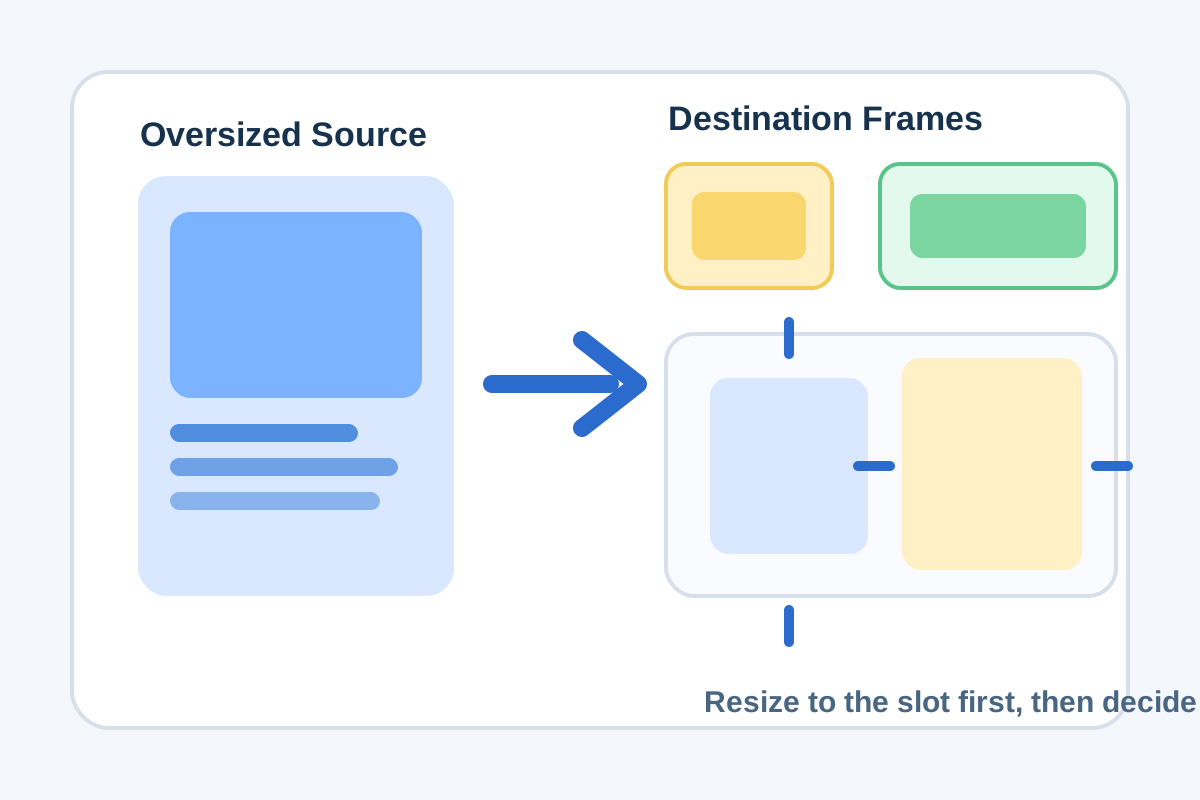
People often reach for compression when the destination is actually rejecting dimensions. A profile banner slot, marketplace image field, CMS card, or report layout can break because the frame is too wide, too tall, or simply shaped for a different placement. Resize first, because the destination usually cares about geometry before it cares about bytes.
A simple destination-first tutorial
- Start from the destination requirement: the exact pixel size, recommended width, or visible layout frame you need to satisfy.
- Upload the source image and decide whether the current framing already suits that destination or whether a crop should happen before resizing.
- Set the output width and height deliberately instead of dragging the image down by habit until the file merely looks smaller.
- Preview the resized result at the approximate size it will actually be seen so text, faces, or product edges still read clearly.
- Download the resized file and only then decide whether a second step like compression is necessary for the final channel.
Where resizing solves the real problem
- A form asks for an image under a certain pixel width, not only under a certain number of megabytes.
- A slide or doc layout needs a cleaner fit because the source image carries far more canvas than the placement can use.
- A product or portfolio grid looks inconsistent because each image arrived in a different frame size.
- A social or CMS image slot keeps auto-cropping the asset because the uploaded dimensions do not match the expected shape.
Why resizing comes before compression
Compression is about how densely the file is stored. Resizing is about how much image there is to store in the first place. If the canvas is still larger than the destination needs, compressing first only preserves unnecessary pixels more efficiently. The cleaner move is to match the frame to the destination and then ask whether the resulting file size is still a problem.
Related UtilFlow moves
Use Aspect Ratio Calculator before resizing if you are not yet sure which frame shape belongs to the destination. Use Image Compressor after resizing only when the correctly sized output still fails the real upload or sharing limit.
FAQ
When should I resize an image instead of compressing it?
Resize first when the destination has a specific width, height, or frame shape requirement, or when the current canvas is simply larger than the destination needs.
What should I check after resizing?
Check that the image still looks clear at its actual display size and that important text, faces, or edges still fit the destination frame properly.
Can resizing also reduce file size?
Yes. Reducing dimensions often lowers file size naturally because the image contains fewer pixels to store.