Resize the Image to the Destination First, Then Decide Whether Compression Is Even Needed
Use Image Resizer as a practical workflow when the file looks fine but fails because the destination wants a specific width, height, or layout slot.
Open Image Resizer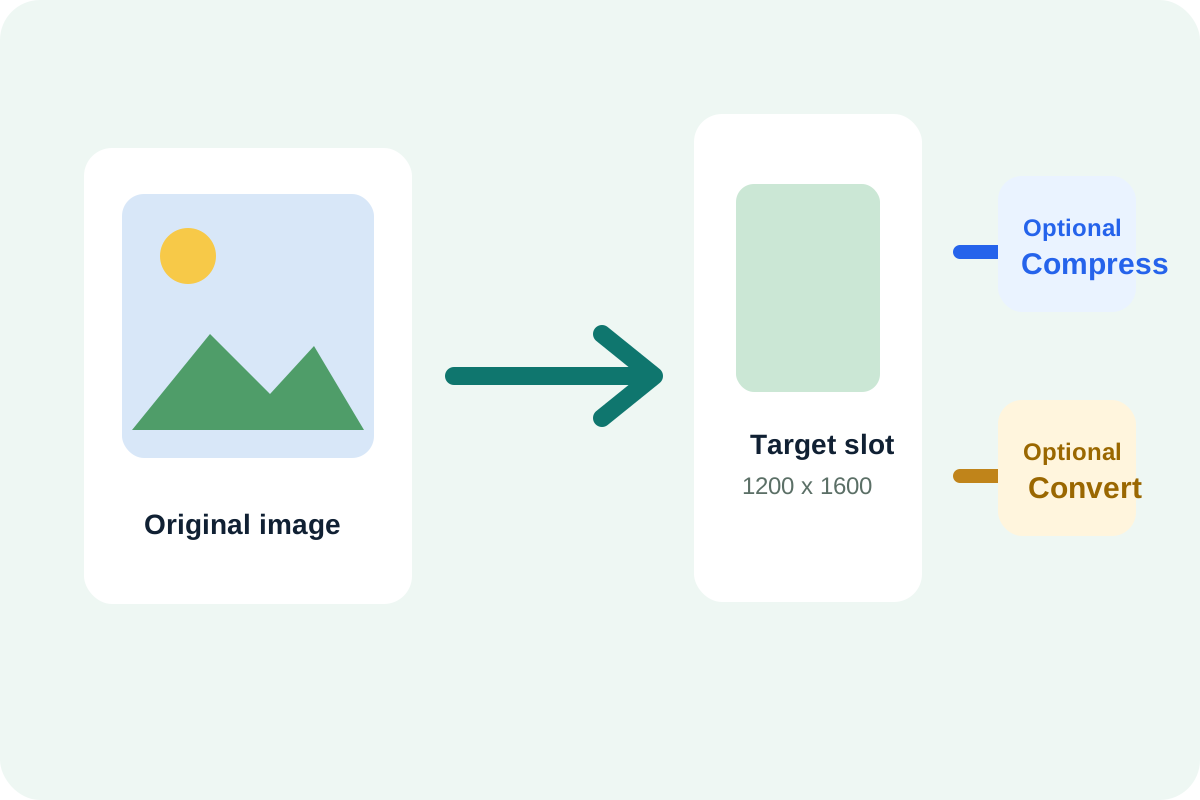
A lot of image handoffs fail for the wrong diagnosed reason. People say the file is too big when the real issue is that the destination expects a specific width, height, or visual slot. Resize first and the next decision becomes clearer: maybe the image is now acceptable immediately, maybe it still needs compression, or maybe only the format is wrong.
The core resize workflow
- Start with the real destination requirement: profile image, marketplace slot, document panel, thumbnail, or CMS block.
- Set the target width and height, and keep aspect ratio on when the frame should stay proportional.
- Preview the resized result before downloading so you can confirm the important content still reads at the destination scale.
- Download immediately if the resized file now fits the slot and the upload accepts it.
- Continue to Image Compressor only if the resized file is still too heavy, or to Image Format Converter only if the resized file type is still rejected.
When resizing solves the whole problem
If the image was simply much larger than the destination could ever display, resizing often removes enough weight on its own. That is why it makes sense to test dimensions first instead of automatically compressing a file that was only oversized in pixels.
What to check after resizing
- The subject or text still fits the frame without awkward cropping.
- The output dimensions now match the destination's requirement or slot expectation.
- Small labels or UI details remain readable at the new size.
- The image no longer feels oversized for the way it will actually be viewed.
Why resize comes before many other image steps
Resizing changes the geometry of the output. Once that geometry is correct, later steps such as compression or format conversion become more targeted and less likely to degrade an image that never needed those changes in the first place.
Related UtilFlow moves
Use Aspect Ratio first when you are not sure which target dimensions preserve the intended shape. Use Images to PDF after resizing if several cleaned images should become one document packet.
FAQ
Why resize an image before compressing it?
Because dimensions are often the real mismatch. If the image is larger than the destination needs, resizing may solve both the slot problem and enough of the file-size problem at once.
What should I preview after resizing?
Preview the parts that matter most at the final size, such as text, edges, product details, or UI labels.
When should I continue into another image tool after resizing?
Continue only when a real blocker remains, such as file weight, format compatibility, or the need to package multiple images into a PDF.