Pull brand colors from an image, normalize the values, and build a usable palette without restarting
Use one chained workflow when a screenshot, poster, or product image is your only color reference and you need clean reusable values instead of visual guesswork.
Open Image Color Picker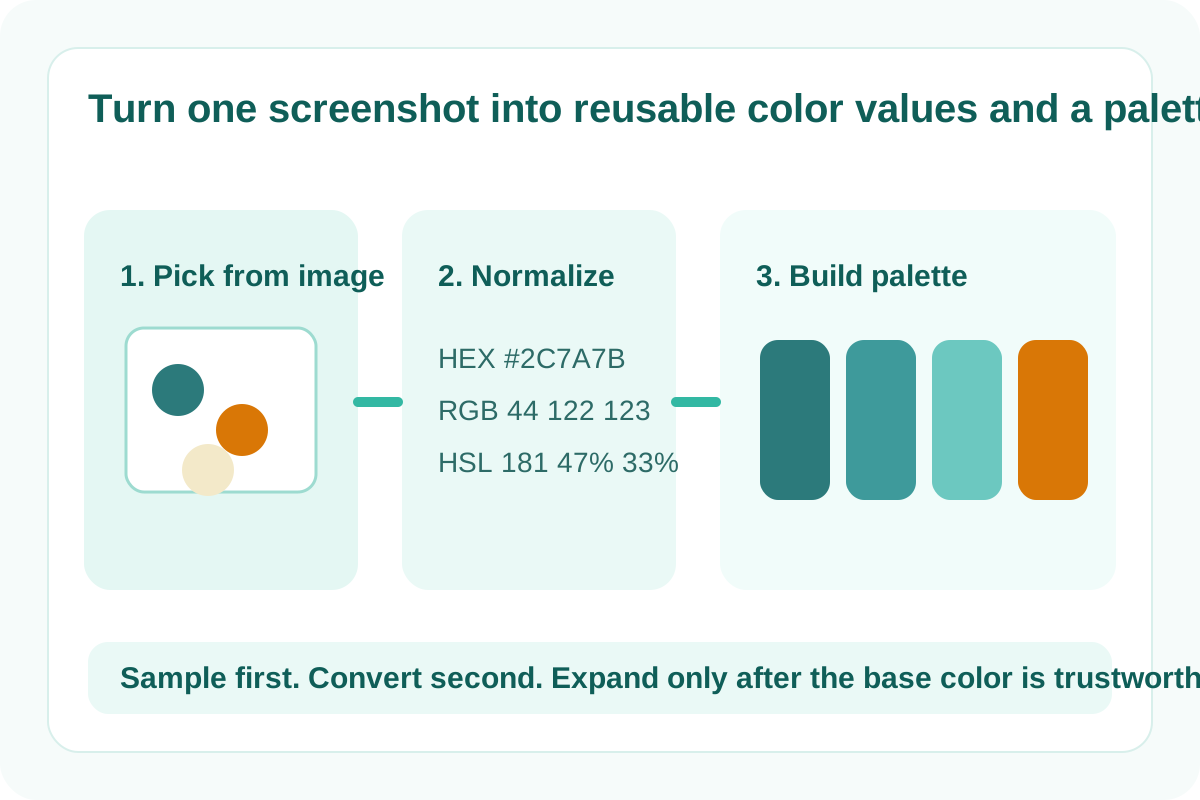
Color handoffs often start from the wrong asset. Someone sends a screenshot, a poster export, or a cropped product image instead of the original design tokens. The real job is not only picking one color. It is turning that visual reference into normalized values and then into a palette other people can actually reuse.
The tool order
- Start with Image Color Picker to sample the key colors directly from the screenshot, poster, or product image.
- Continue to HEX/RGB/HSL Converter when the next system expects a different color notation than the sampled value.
- Finish with Color Palette once the core values are normalized and ready to expand into a reusable set.
When to stop and download or copy
- Stop after Image Color Picker if you only need one exact sampled color for a quick fix or annotation.
- Stop after HEX/RGB/HSL Converter if the real blocker was notation compatibility between design, CSS, and presentation tools.
- Continue to Color Palette when a single color is not enough and the next person needs a fuller system of related swatches.
What to check after each step
- After Image Color Picker: confirm you sampled the intended element rather than a shaded edge, overlay, or anti-aliased border.
- After HEX/RGB/HSL Converter: confirm the destination format matches the tool or document you will paste into next.
- After Color Palette: confirm the expanded palette still feels anchored to the original image instead of drifting into unrelated colors.
Why this workflow is cleaner than eyeballing colors separately
Sampling, converting, and palette building solve different problems. If you skip straight to palette generation, the base color may already be wrong. If you stop at sampling, the value may still be unusable in the next environment. The sequence stays clean because each tool removes one specific uncertainty before the next one starts.
Related UtilFlow moves
If the source image also needs resizing before you share the palette context, use Image Resizer first. If the final brand asset must include a QR or scoreboard graphic, continue into QR Code Generator or Football Scoreboard Image Maker after the colors are stable.
FAQ
Which tools are in this multi-step tool workflow?
The workflow uses Image Color Picker, HEX/RGB/HSL Converter, and Color Palette in that order.
When should I stop after the color picker?
Stop there when one sampled color is enough and the next tool already accepts the picked value format.
Why convert the color value before building a palette?
Because the next system may need HEX, RGB, or HSL specifically, and normalizing the base value first keeps the palette workflow consistent.