Match the Aspect Ratio Before the Thumbnail, Cover, or Doc Slot Keeps Cropping the Wrong Thing
Use an aspect-ratio problem-solving guide when images keep looking 'randomly cropped' across cards, covers, posters, or document layouts that actually expect one stable frame shape.
Open Aspect Ratio Calculator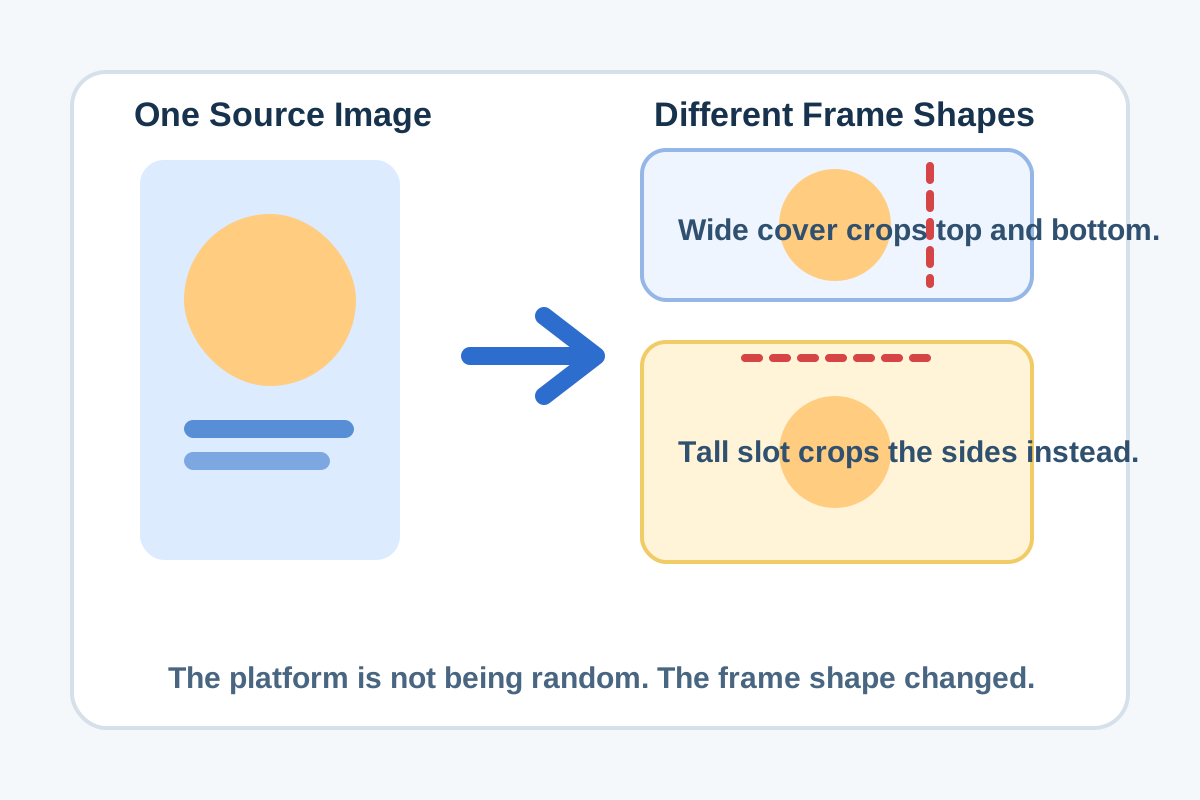
A lot of 'bad cropping' complaints are really frame-shape mismatches. The platform expects 16:9, the source image behaves like 4:3, and a person ends up dragging focal points around as if the cropper were making arbitrary decisions. Once the aspect ratio is named clearly, the problem becomes predictable: the frame and the content are not speaking the same geometry.
What this problem looks like in practice
- A thumbnail keeps cutting off faces or product edges because the card shape is wider than the source image.
- A document slot adds awkward white bars because the destination is taller or squarer than the uploaded asset.
- A hero or cover image looks inconsistent across templates because each placement assumes a different ratio.
- A team keeps exporting new sizes manually without agreeing on the actual frame shape first.
Why the ratio matters more than the raw size first
Pixel dimensions can be scaled. Shape mismatch is harder. If one destination expects a wide rectangle and another expects a square, sending the same source file into both without planning the ratio means at least one version will crop, letterbox, or waste space. The ratio tells you what kind of frame the image is trying to occupy before you choose exact output dimensions.
A cleaner way to solve it
- Identify the destination frame shape before you touch export settings, especially for cards, covers, posters, and share images.
- Compare the source image ratio to the target ratio so you know whether width or height is going to be sacrificed.
- Choose whether to crop, pad, or redesign the composition instead of blaming the platform for applying the frame consistently.
- Once the target ratio is fixed, move into resizing or cropping with a predictable goal instead of trial and error.
Related UtilFlow moves
Use Image Cropper after you decide on the target ratio and need to control which part of the image stays in frame. Use Image Resizer next when the ratio is already right and the remaining task is matching exact pixel dimensions.
FAQ
What is the real difference between image size and aspect ratio?
Image size is the number of pixels. Aspect ratio is the shape relationship between width and height. You can scale size up or down, but a shape mismatch still creates cropping or padding problems.
Why does one image keep cropping differently across platforms?
Because each destination may expect a different frame shape, and the platform is fitting the same image into those different ratios.
What should I decide first when the crop looks wrong?
Decide the target aspect ratio first. Once the frame shape is clear, the crop or resize decision becomes much easier.