Generate a QR Code, Test It at Real Size, and Export the Version People Can Actually Scan
Use a QR-code workflow when the job is not merely creating the code but making sure size, contrast, destination, and print context still allow a real camera to read it reliably.
Open QR Code Generator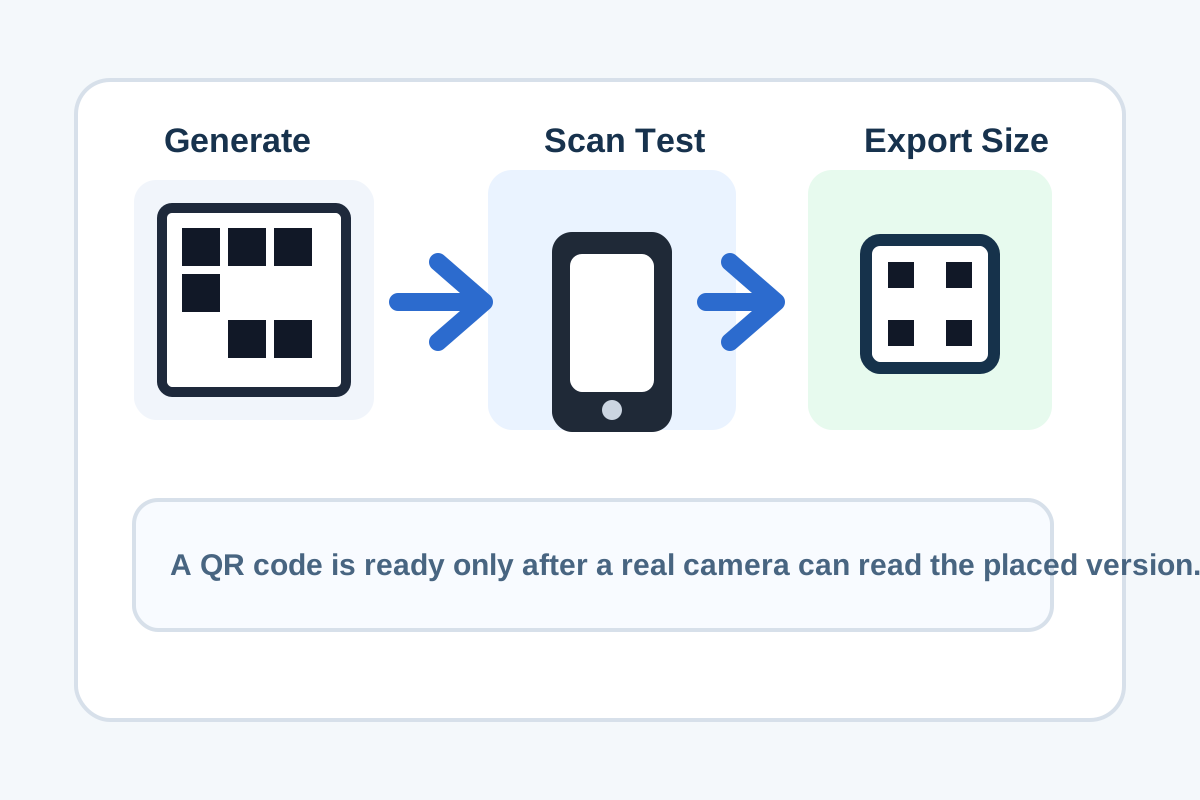
A QR code is only useful if someone else can scan it under real conditions. That means the workflow should not stop at generation. The more practical sequence is to create the code, test the actual content, match the visible size to the destination, and only then export the version that belongs on the poster, table tent, slide, menu, or package.
A practical scan-first workflow
- Generate the QR code from the final destination link or text, not from a placeholder that will have to be swapped later.
- Open or preview the code at a realistic display size and test it with a normal phone camera before you embed it anywhere important.
- Check contrast and quiet space around the code so nearby graphics, backgrounds, or borders do not interfere with reading.
- Resize or export the code for the exact destination once you know the content and scan behavior are already correct.
- Retest after placement if the QR code will sit on a poster, menu, slide, or product surface with surrounding design elements.
Where QR workflows usually break
- The URL changed after the QR code was already placed into print or slides.
- The code looked fine on a large monitor but became too small on a printed card or busy layout.
- Decorative backgrounds or too-tight spacing reduced contrast and quiet margin.
- The export was resized carelessly after generation and the final placed version was never scanned again.
Why 'generated' is not the same as 'ready'
The encoder can produce a valid QR pattern and the surrounding design can still make it fail. Cameras need enough visible size, contrast, and breathing room to detect the pattern consistently. That is why the last responsible step is a real scan check, not a screenshot or assumption that the generator alone guarantees success.
Related UtilFlow moves
Use Image Resizer if the placed code needs a destination-specific export size after you confirm it scans. Use Image Metadata Viewer when you need to verify the delivered pixel dimensions before handing the QR asset to print or marketing.
FAQ
When should I test a QR code with a phone camera?
Test it before final placement and again after placement if the code is being used in print, on signage, or inside a designed layout.
What usually makes a QR code hard to scan?
Common causes are insufficient size, low contrast, crowded surroundings, or using a destination link that changed after the code was generated.
Why resize the QR code only after scanning it first?
Because you want to know the code content and pattern are already correct before you adapt the asset to a specific destination size.