Generate a QR Code, Resize It for Placement, Convert the Format, and Compress Only If Delivery Still Fails
Use a chained workflow when one QR asset needs to survive several handoffs such as a printed sign, slide deck, CMS upload, and email approval without restarting the export from scratch.
Open QR Code Generator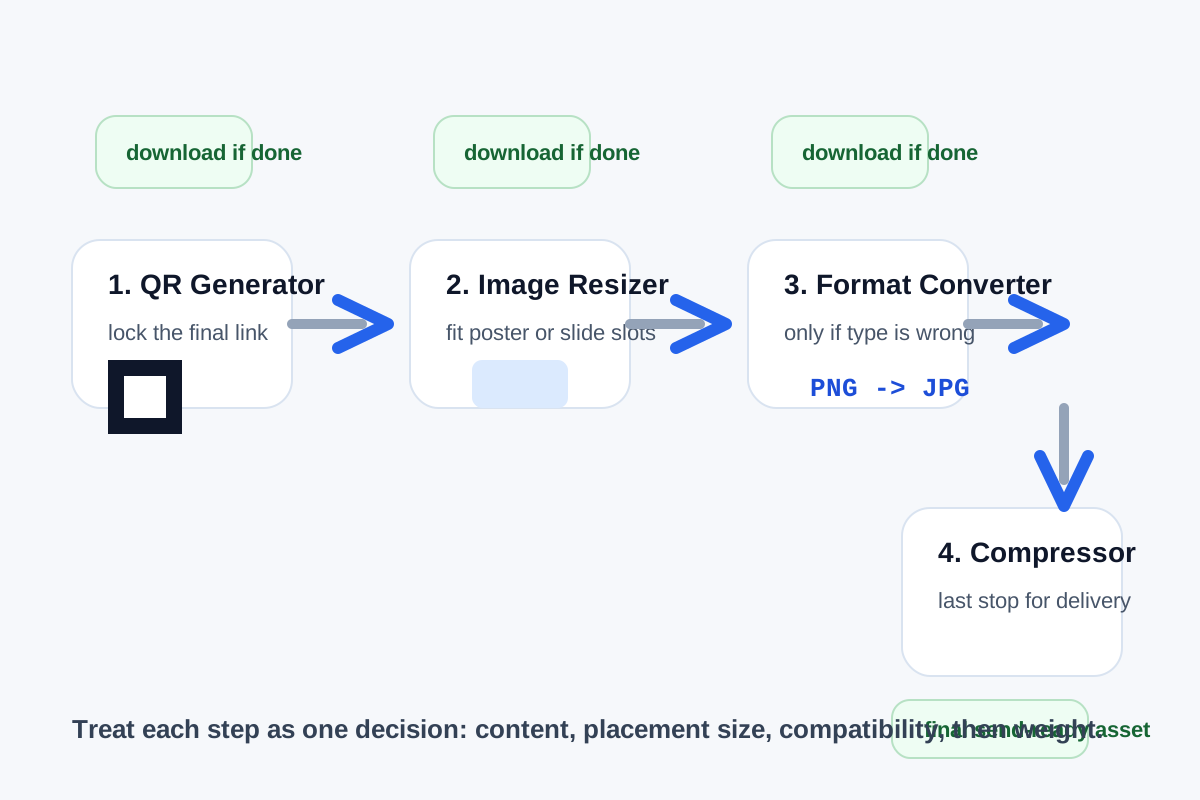
A QR code asset often has more than one destination. The same campaign or event code may need to live on a poster, a slide, a counter card, a support article, and an approval email. The clean workflow is not to rebuild the code from scratch for every stop. It is to generate the correct code once, adjust size for placement, change format only when a destination requires it, and compress only when delivery still complains.
The tool order
- Start with QR Generator and confirm the destination link or text is final before any asset handling begins.
- Continue to Image Resizer when the code needs different physical or layout sizes for poster corners, slides, help articles, or cards.
- Move into Image Format Converter only if the next system requires a different file type such as PNG, JPG, WebP, or AVIF.
- Finish with Image Compressor only when the correctly sized and correctly formatted asset still feels too heavy for email, CMS, or upload delivery.
When to stop and download
- Stop after QR Generator if one standard PNG already serves the destination cleanly.
- Stop after Image Resizer if the resized QR now fits the poster, slide, or article slot and no format problem exists.
- Stop after Image Format Converter if compatibility was the only blocker and the new file type works everywhere it needs to go.
- Use Image Compressor only when the asset is already correct for scanning and compatibility but one delivery channel still rejects the file size.
What to check after each step
- After QR Generator: test the code on another device so the destination itself is verified before more work happens.
- After Image Resizer: confirm the code still scans at the intended display or print size.
- After Image Format Converter: confirm contrast, edge sharpness, and background treatment still preserve readability.
- After Image Compressor: run one more scan test so the size reduction did not hurt the code's practical readability.
Why compression belongs last
Compression solves transport weight, not placement or compatibility. If you compress too early, you may end up resizing or converting a heavier-than-necessary or lower-quality intermediate file. Keeping compression last preserves the strongest possible source until the only remaining blocker is delivery.
Related UtilFlow moves
If the QR is heading into a larger print packet, continue into Images to PDF after the final image version is approved. If the surrounding sign or card needs color coordination first, pair the QR asset with Hex RGB HSL or Color Palette before exporting the final layout.
FAQ
Why resize a QR code after generating it instead of rebuilding it each time?
Because one verified source asset is easier to manage, and resizing is often enough when the destination only changes physical placement or layout size.
When should I convert the QR image format?
Convert it only when the next system rejects or prefers a specific file type; otherwise keep the original working format.
Why compress the QR image only at the end?
Because compression addresses delivery weight after the content, placement size, and file-type choice are already correct.