Fix Sideways Phone Photos, Crop the Frame, Convert the Format, and Compress the Final Upload
Use one chained image workflow when a phone photo needs orientation repair, a tighter frame, the right file format, and a smaller upload size before it goes anywhere else.
Open Rotate and Flip Image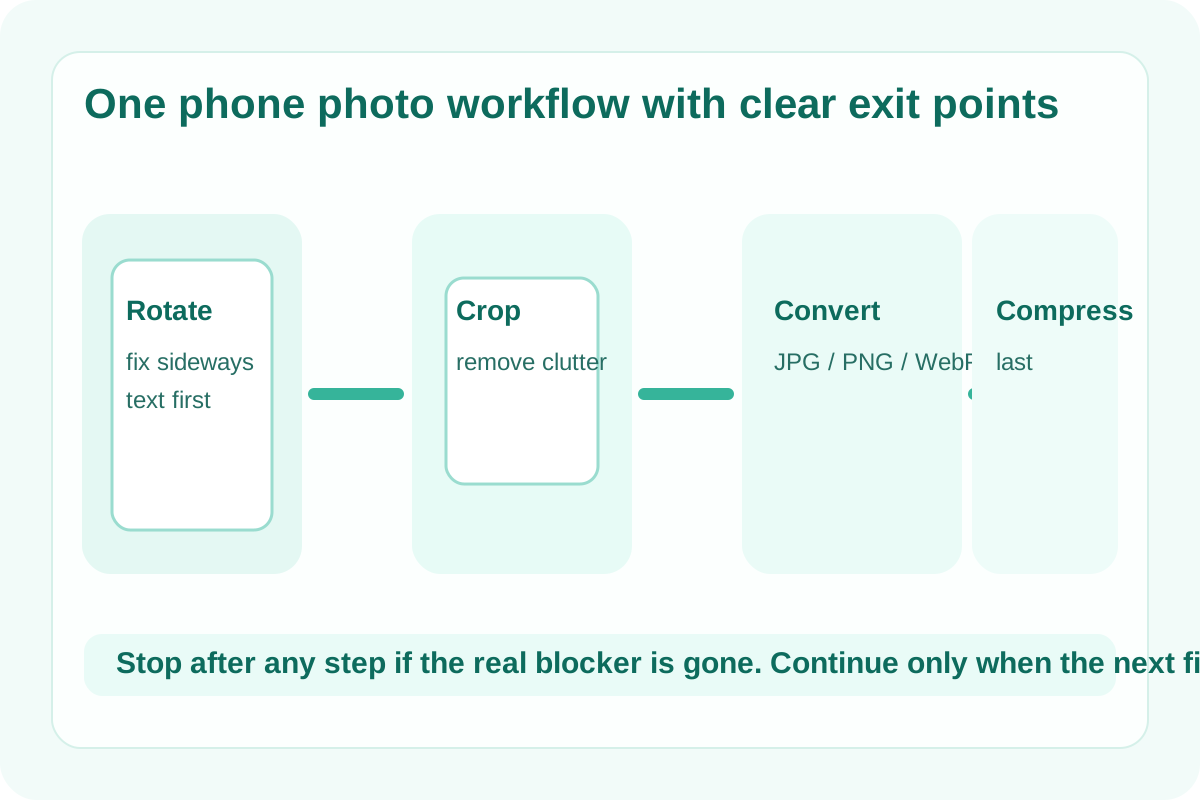
Phone-photo cleanup becomes messy when four small fixes are treated like four separate jobs. The image opens sideways, it still includes background clutter, the destination rejects the current format, and the final upload limit is lower than expected. This is one image workflow, not a pile of disconnected edits, and the cleanest version fixes meaning before size.
The tool order
- Start with Rotate and Flip Image so the subject is upright before any crop box or export decision is made.
- Continue to Image Cropper when the useful proof, product, receipt, or reference area needs a tighter frame.
- Move to Image Format Converter once the image content is correct and the remaining blocker is JPG, PNG, or WebP compatibility.
- Finish with Image Compressor only if the cleaned and correctly formatted file still fails the upload size limit.
When to stop and download
- Stop after Rotate and Flip Image if the wrong orientation was the only problem and the destination already accepts the file as-is.
- Stop after Image Cropper if framing was the issue and the new crop is already in a usable size and format.
- Stop after Image Format Converter if the destination only needed a different file type and the upload now passes.
- Use Image Compressor only when the corrected image still exceeds the final upload limit.
What to check after each step
- After Rotate and Flip Image: confirm text, signage, and object direction now read naturally.
- After Image Cropper: confirm the important evidence or subject still has enough context to make sense.
- After Image Format Converter: confirm transparency, background, and edge quality still match the destination's needs.
- After Image Compressor: confirm text, sharp edges, and small details still survive at the final file size.
Why this sequence stays cleaner than compressing first
Compression should solve the last problem, not the first one. If the file is still sideways, badly framed, or in the wrong format, shrinking it only optimizes the wrong asset. The earlier steps remove those bigger blockers before you spend quality budget on weight reduction.
Related UtilFlow moves
If you need a new width or height target for a document or listing after the crop, switch to Image Resizer before compression. If the cleaned images must become one shareable document, continue into Images to PDF after the final format is ready.
FAQ
Why start with Rotate and Flip Image in this multi-step tool workflow?
Because orientation affects every later decision, including how you crop, whether text is readable, and what the image should look like at export.
When should I convert the format instead of compressing the image?
Convert the format when the destination rejects the current type or needs a different compatibility profile. Compress later only if file size is still the remaining blocker.
Which tools are in this image workflow?
The workflow uses Rotate and Flip Image, Image Cropper, Image Format Converter, and Image Compressor in that order.