Crop, Resize, Convert, and Base64-Encode One Image Asset Before You Inline It Into Email or CMS Code
Run a chained workflow when one icon, badge, or small visual needs to be cleaned into the right frame, exported in the right format, and then converted into a Base64 image string for an inline code or content field.
Open Base64 Image Encoder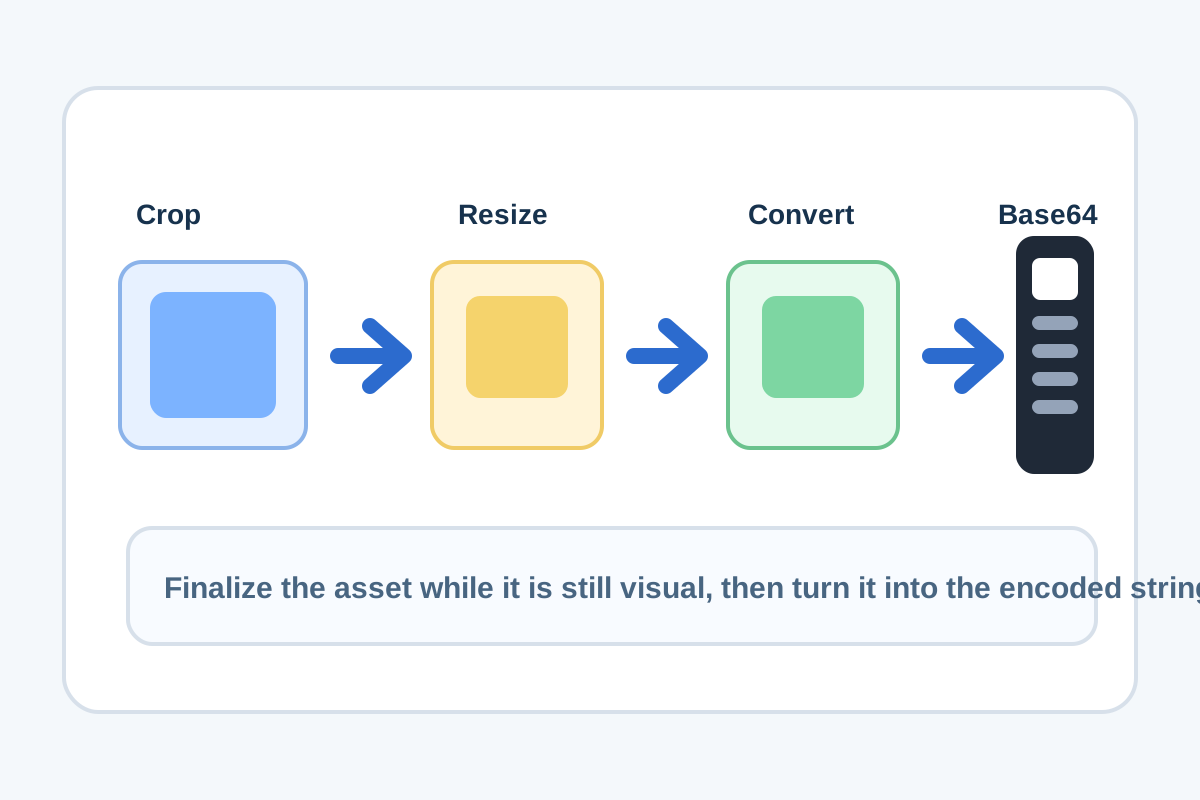
Inlining an image into email code, a CMS embed, or a small prototype is easier when the asset is already minimal before it becomes a long Base64 string. This workflow keeps the operations in the right order: crop away wasted area first, resize to the destination frame, convert into the file type that best suits the destination, and only then encode the final version into Base64.
The tool order
- Start with Image Cropper when the source file includes extra margin, background, or visual area that should never travel into the inline asset.
- Move to Image Resizer once the right content is isolated and the remaining job is matching the exact visible dimensions of the destination.
- Continue to Image Format Converter if the inline target should use a different file type before encoding, such as PNG for sharp edges or JPG for a photo-like badge.
- Finish with Base64 Image Encoder only when the asset is already final enough that you would otherwise be willing to ship that exact file by itself.
When to stop and download
- Stop after Image Cropper if the destination still accepts normal image files and the only problem was wasted framing.
- Stop after Image Resizer if the file already matches the destination and no inline encoding is actually necessary.
- Stop after Image Format Converter if the target system wants a standard file upload instead of a data URL or embedded string.
- Use Base64 Image Encoder only when the real destination truly benefits from one inline asset string rather than a separate file reference.
What to check after each step
- After Image Cropper: confirm the icon, badge, or artwork still has enough breathing room and did not lose any edge detail.
- After Image Resizer: confirm the asset still looks crisp at the exact size the email or CMS block will render.
- After Image Format Converter: confirm transparency, sharpness, and compatibility still match the inline destination.
- After Base64 Image Encoder: confirm the preview is the right final asset before copying a long string that is awkward to inspect manually.
Why this order keeps inline assets sane
Once the image becomes a Base64 string, it stops being easy to reason about visually inside code. That is why the highest-leverage decisions belong earlier in the chain. Keep the image small, correctly framed, and in the right format before you turn it into one opaque block of encoded text.
Related UtilFlow moves
If the destination prefers a conventional image URL rather than a data string, stop before Base64 and keep the exported file. If the inline string later needs HTML escaping for a template field, continue into HTML Entity Encoder only after the asset itself is final.
FAQ
Why should I crop and resize before Base64 encoding an image?
Because once the image is encoded into a long string, visual edits and quality decisions become much harder to inspect. It is cleaner to finalize the asset first.
When is Base64 Image Encoder the right last step?
Use it when the destination genuinely needs one inline image string, such as a data URL in email code, a small embed, or a CMS field that is easier to manage inline.
What file type should I choose before encoding?
Choose the type that best fits the asset and destination first, then encode that final version. For example, sharp-edged graphics often benefit from PNG while photographic content may suit JPG better.