Check Dimensions, Orientation, and File Weight Before You Fix the Wrong Image Problem
Use a technical image metadata guide when an upload, crop, resize, or compression task feels broken, but the real answer is still hiding in the file dimensions, orientation data, and size facts.
Open Image Metadata Viewer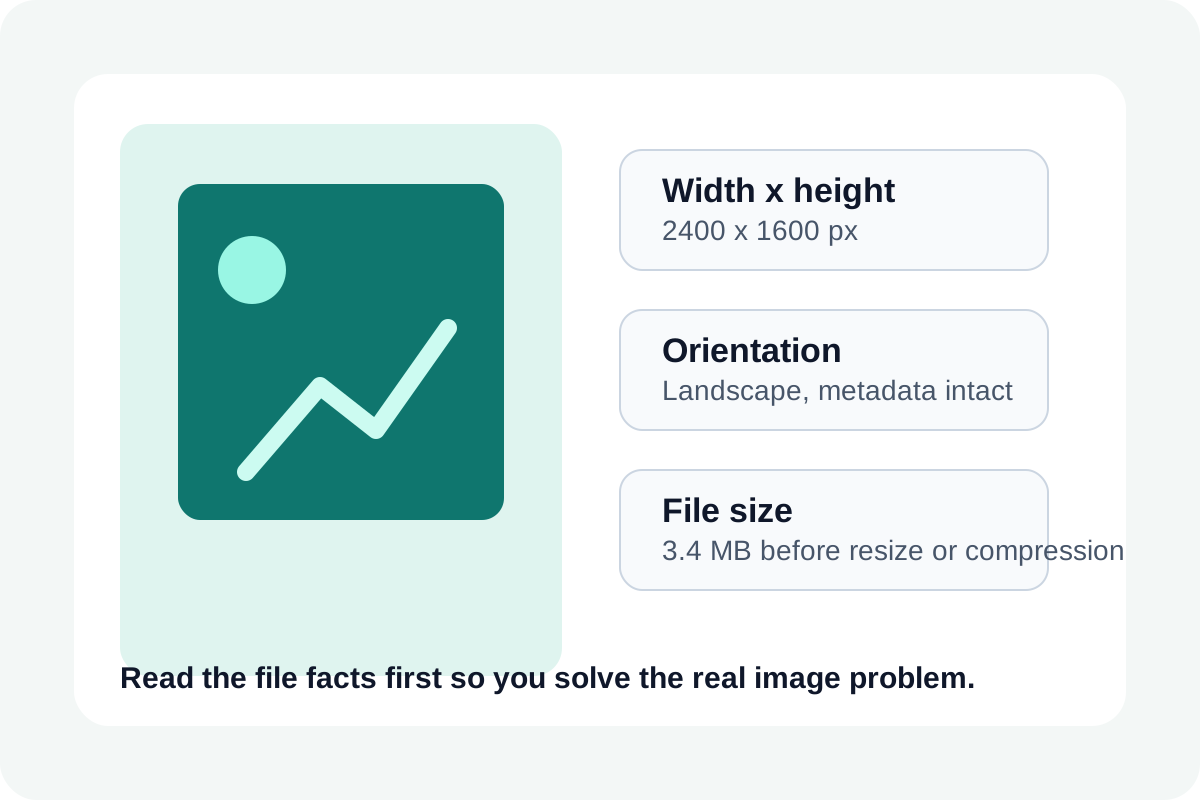
Many image problems are diagnosed backward. People start compressing when the issue is actually dimensions, start cropping when the orientation tag is wrong, or blame format compatibility when the file is simply larger than the destination allows. A technical metadata check is the fastest way to understand which property is really causing the handoff to fail.
Three technical signals that change the next step
- Dimensions tell you whether the image is physically larger than the slot, page, or upload target before quality even enters the conversation.
- Orientation data tells you whether the image should be displayed rotated, which matters when a phone photo looks wrong in one app but correct in another.
- File size tells you whether compression is necessary at all or whether resizing alone will remove most of the overhead.
Why metadata beats guesswork
If an image is 4000 pixels wide and the destination only needs 1200, quality tweaks alone are usually the wrong first move. If a screenshot is already small in dimensions but heavy in megabytes, a format or compression decision matters more. Technical inspection helps you choose the right operation instead of stacking edits that solve the wrong variable.
A reliable inspection workflow
- Open the file in Image Metadata Viewer before editing it.
- Read width, height, file size, and orientation as one set of facts instead of in isolation.
- Decide whether the next step is resize, crop, rotate, format conversion, or compression based on those facts.
- After editing, check the metadata again so the output now matches the destination rather than relying on visual guesswork.
What this technical view changes in practice
Teams waste time when they keep saying an image is too large without stating whether they mean pixel dimensions or file weight. Metadata turns that vague complaint into a precise next action. It also helps you preserve small text and diagrams, because you only compress when the file-size problem is real.
Related UtilFlow moves
Use Image Resizer after the metadata check when the dimensions are the real problem. Use Image Rotate and Flip if the orientation is wrong in the visible output. Use Image Compressor only when the dimensions already fit and the file is still too heavy.
FAQ
What is the first metadata value I should check?
Usually dimensions, because they tell you whether the image is fundamentally larger than the destination before you make any quality tradeoff.
Why does orientation metadata matter?
Because some apps honor the rotation tag and others do not, which can make the same phone photo appear upright in one place and sideways in another.
When is compression the wrong first fix?
Compression is usually the wrong first fix when the image is oversized in pixels and resizing would solve most of the file problem with fewer quality losses.