Check, Crop, Resize, and Compress Screenshots in One Online Image Workflow
Use Image Metadata Viewer, Image Cropper, Image Resizer, and Image Compressor in one chain when screenshots need to become lighter, cleaner, and ready for docs, tickets, or chat uploads.
Open Image Metadata Viewer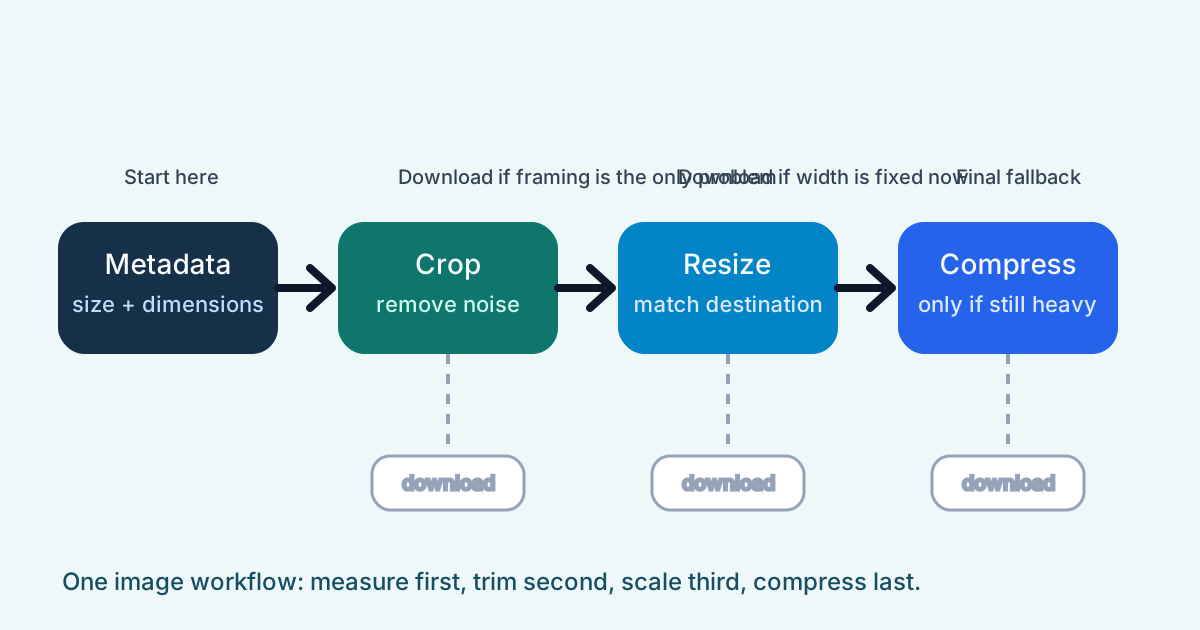
Screenshot cleanup goes wrong when every edit is treated like a separate project. The frame is too wide for the doc, the capture still includes browser chrome or private sidebars, the destination only needs half the pixels, and the ticket form still rejects the file weight. That is not four unrelated tasks. It is one multi-step tool workflow, and the cleanest version starts by measuring the file before changing it.
The tool order
- Start with Image Metadata Viewer to see the original dimensions and file size before you decide whether the real issue is framing, scale, or weight.
- Continue to Image Cropper when the screenshot includes navigation, side panels, or empty space that the reader does not need.
- Move to Image Resizer after cropping when the remaining screenshot is still larger than the destination layout, doc width, or chat preview really needs.
- Finish with Image Compressor only if the cleaned screenshot still fails the upload or attachment limit.
When to stop and download
- Stop after Image Metadata Viewer if the dimensions are already acceptable and you only needed a quick size check before handing the file off.
- Stop after Image Cropper if the only problem was extra framing and the destination already accepts the file size.
- Stop after Image Resizer if the screenshot now fits the intended width and the upload no longer complains.
- Use Image Compressor only when the cleaned and resized screenshot is still too heavy for the final destination.
What to check after each step
- After Image Metadata Viewer: decide whether the next move should be cropping, resizing, or no edit at all.
- After Image Cropper: confirm the actual bug, evidence, or UI region is still visible without the removed context.
- After Image Resizer: confirm labels, numbers, and small interface text remain readable at the destination width.
- After Image Compressor: confirm text edges and contrast still hold up in docs, tickets, and chat previews.
Why this image workflow is cleaner than starting with compression
Compression is most useful after the frame and scale are already right. If you compress a screenshot that still includes unnecessary chrome or still targets the wrong width, you are optimizing the wrong file. The earlier steps remove waste first so compression only solves the last true blocker.
Related UtilFlow moves
If the final handoff must be one document instead of separate screenshots, continue into Images to PDF after this chain. If the screenshot must preserve a fixed proportion for a template first, run Aspect Ratio Calculator before cropping.
FAQ
Why start with Image Metadata Viewer in this multi-step tool workflow?
Because knowing the original dimensions and weight tells you whether the real fix is cropping, resizing, or leaving the file alone.
When should I resize a screenshot instead of compressing it?
Resize first when the file is physically larger than the destination needs. Compress later only if the cleaned screenshot is still too heavy.
Which tools are in this online workflow?
The workflow uses Image Metadata Viewer, Image Cropper, Image Resizer, and Image Compressor in that order.