Build One Clean Maintenance Calendar Before the Window Keeps Moving in Chat
Use a simple month-view calendar tutorial when a maintenance window, launch freeze, or rollout sequence keeps drifting across chat threads, slides, and ad hoc notes.
Open Calendar Maker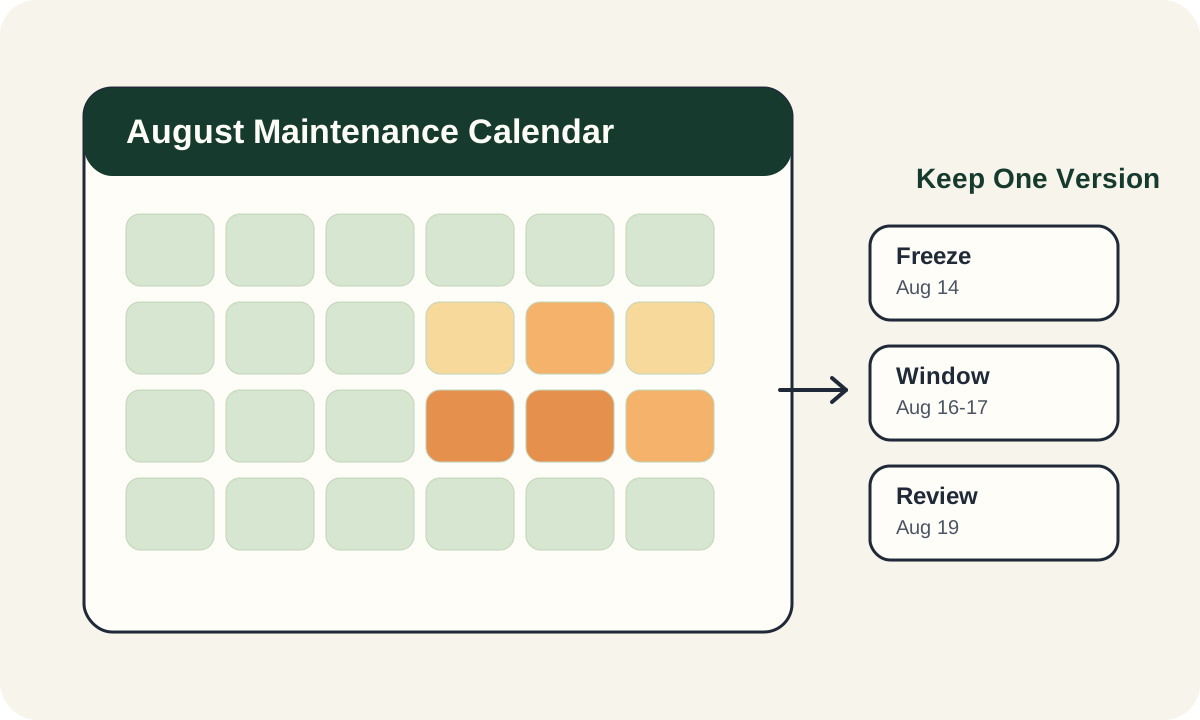
A maintenance or rollout plan becomes noisy fast when the dates live in three places at once: a chat thread, a slide, and a ticket description. People start quoting different versions of the same window, and the argument stops being about the work itself. A plain month-view calendar is useful here because it freezes the shape of the timeline before every small date tweak becomes another coordination problem.
Start with one calendar question
Do not begin by filling every day with detail. Begin by deciding what the calendar must settle: the actual maintenance window, the blackout dates around it, the review checkpoint, or the downstream rollout period. The clearer that one question is, the cleaner the finished month view becomes.
A practical calendar tutorial
- Choose the month that contains the real operating window rather than the month people started talking about it.
- Set the week start that your team already expects so nobody misreads where the dates land.
- Mark the maintenance or launch window first, then add the review or freeze dates that explain how the team should behave around it.
- Keep procedural detail in the surrounding ticket or checklist instead of cramming every instruction into the calendar cells.
- Share the finished calendar as the one reference everyone should quote when the schedule comes up again.
Why a plain month view works better here
Invites are good for one meeting. They are weaker when the job is showing the full shape of a sequence: prep, freeze, execution, rollback buffer, and follow-up. A month view makes the spacing visible, which is exactly what people lose when the plan stays trapped in short messages.
What belongs outside the grid
- Escalation owners and exact runbook steps belong in a checklist or task tracker.
- Environment-specific caveats belong in the ticket or release note.
- Links to dashboards, meeting notes, and rollback docs belong next to the calendar, not inside it.
- If the key confusion is timezone rather than day placement, solve that first in a time-conversion step before you lock the month view.
Related UtilFlow moves
After the calendar is stable, move into Checklist Maker when the team needs execution detail, or into Reading Time when the surrounding brief still feels too long for someone to absorb quickly before the window opens.
FAQ
When is a plain monthly calendar better than another calendar invite?
It is better when the team needs one visible month shape for planning, sequencing, or freeze awareness rather than a synced meeting object.
What should I put in the calendar first?
Start with the actual operating window or key dates that settle the schedule, then add only the supporting milestones that help people read that sequence correctly.
What should stay out of the calendar?
Detailed runbook steps, owner notes, and long instructions should stay in the surrounding checklist or ticket so the month view remains readable.