Use a PDF to PNG Free Pass to Crop Figures, Compress Review Images, and Rebuild One Handout
Run a figure-extraction workflow when a PDF contains useful charts or pages but the final handout should be lighter, cleaner, and easier to review as images before it becomes a new PDF again.
Open PDF to Images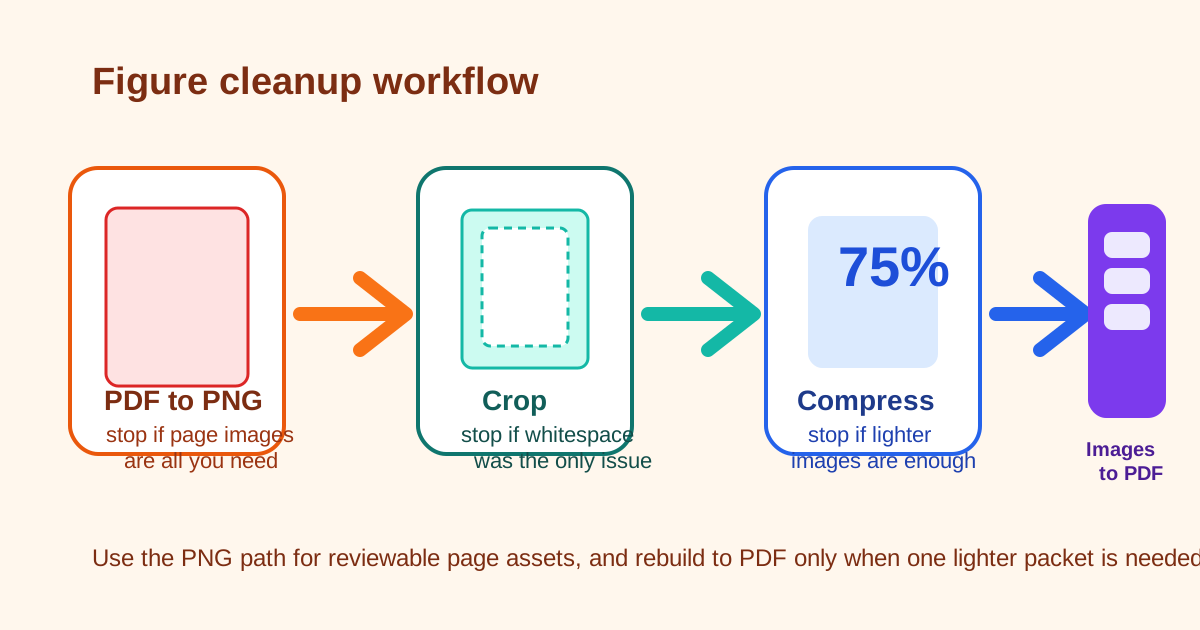
Sometimes the destination does not need the full original PDF. It needs the charts, slide pages, or key figures in a format people can review quickly, annotate elsewhere, and then package back into one lighter handout. That is where a PDF to PNG free pass helps first. Google Trends shows related growth around pdf to png free and pdf to svg, which is a useful clue: people increasingly want page assets they can inspect or reuse, not only one sealed document.
The tool order
- Start with PDF to Images when the useful unit is the page as a visual asset rather than the PDF as one untouched document.
- Move to Image Cropper to remove the margins, empty headers, or surrounding white space that make the page image heavier than it needs to be.
- Continue to Image Compressor only after the crop is correct and you know which images are actually going into the final handout.
- Finish with Images to PDF when the cleaned page visuals should become one lighter packet again for download, upload, or sharing.
When to stop and download
- Stop after PDF to Images if reviewers only need page PNGs for chat, slides, or quick markup.
- Stop after Image Cropper if the core problem was removing wasted margins or isolating one figure from a page.
- Stop after Image Compressor if the final deliverable is a set of lighter images rather than a document packet.
- Use Images to PDF only when the cleaned visuals need to come back together into one handout or upload file.
What to check after each step
- After PDF to Images: confirm page order and whether PNG output is the right asset, or whether a pdf to svg search is really pointing to an editable-vector need that this workflow should not pretend to solve.
- After Image Cropper: confirm that labels, legends, or footer notes were not clipped away with the whitespace.
- After Image Compressor: confirm the smaller images still keep chart text and annotations readable at review size.
- After Images to PDF: confirm the rebuilt packet keeps the selected order and stays lighter than the original source.
Why this workflow is cleaner than editing the original PDF blindly
The original PDF may contain pages, margins, or layout choices that only made sense in the source context. Converting selected pages into images creates an explicit review checkpoint. Once the pages are visual assets, you can crop and compress only the parts that help the final handout instead of trying to solve a figure-prep problem with document-level edits alone.
Related UtilFlow moves
If the original packet should first lose irrelevant pages, use Extract Pages or Delete Pages before this workflow. If the cleaned handout later needs page references again, continue into Add Page Numbers to PDF after the rebuild rather than placing numbers on the images themselves too early.
FAQ
Why start with a pdf to png free pass instead of cropping the PDF directly?
Because the review unit here is the page image. Once each page becomes a visual asset, it is easier to crop whitespace, check readability, and decide whether the final output should stay as images or return to PDF.
Where does pdf to svg fit into this workflow?
It fits as a decision check. If you actually need editable vector shapes from a diagram page, a pdf to svg search may reflect a different goal than the PNG-first review path described here.
When should I rebuild the images into a PDF?
Rebuild them only when the cleaned page visuals need to travel again as one handout, upload packet, or shareable document.