Run a PDF to PNG Review Pass, Fix Sideways Pages, Rebuild With Image to PDF, and Compress Only If Upload Still Fails
Use a chained PDF and image workflow when a scanned packet is hard to inspect page by page, some pages are sideways or overframed, and the final upload still needs one smaller PDF copy.
Open PDF to Images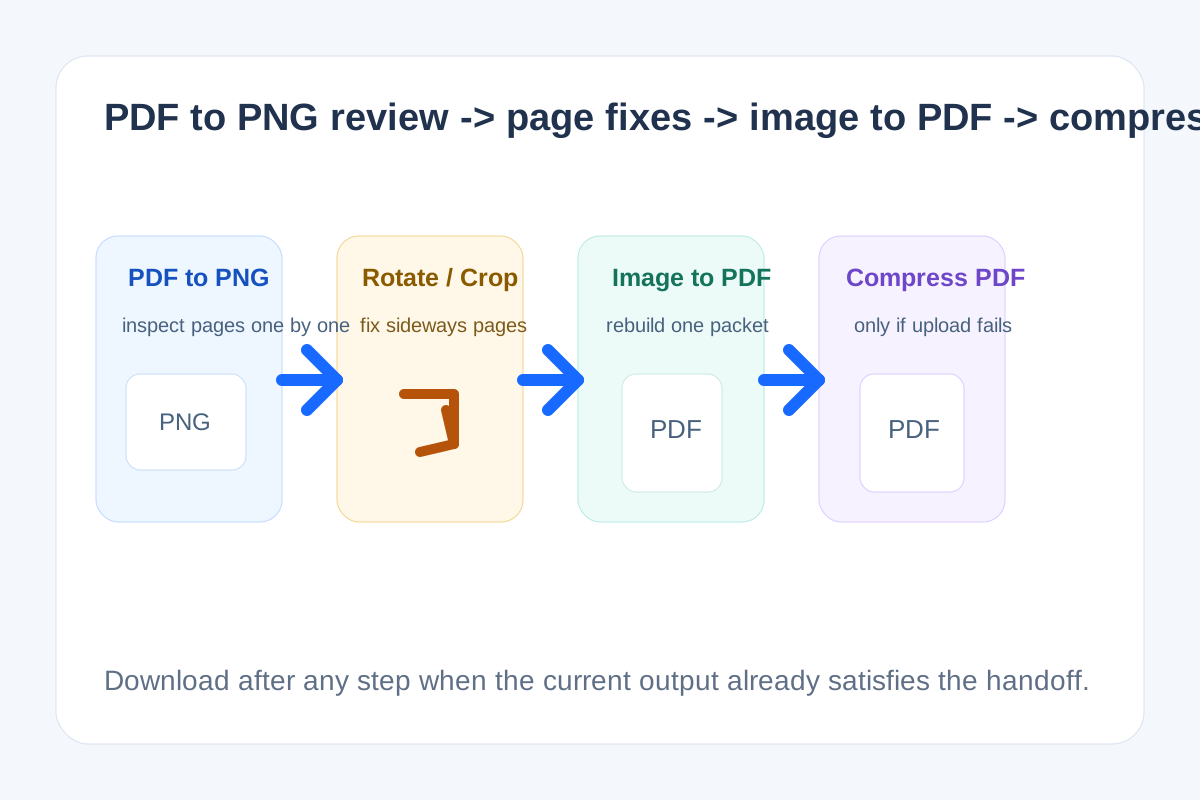
Scanned packets often fail in a way that broad search terms describe surprisingly well. People look for pdf to png because they need to see and fix pages one by one. They look for image to pdf because the repaired pages need to become one document again. They look for compress pdf only when the cleaned packet is correct but still too large to leave their hands. That is a real chained workflow, not three unrelated tasks.
The tool order
- Start with PDF to Images to create a page-by-page PNG review pass that is easier to inspect than flipping inside the original scan.
- Use Rotate and Flip Image on any sideways pages before you rebuild the packet.
- Use Image Cropper only on the pages that have oversized borders, black edges, or too much empty scanner frame.
- Move to Images to PDF once the page set looks right again and needs to return to one file.
- Finish with Compress PDF only if the rebuilt packet still misses the portal or email size limit.
When to stop and download
- Stop after PDF to Images if the immediate need is only visual review, annotation, or page-by-page discussion.
- Stop after rotating and cropping if another teammate needs the cleaned page images rather than a rebuilt PDF yet.
- Stop after Images to PDF if the packet is structurally fixed and the file size already passes.
- Run compress pdf only when the rebuilt document is final and the remaining blocker is delivery size.
What to check after each step
- After PDF to Images: confirm the page order and make a note of exactly which pages need rotation or cropping.
- After Rotate and Flip Image: confirm the text direction is correct and that no signature or stamp ended up mirrored.
- After Image Cropper: confirm important margins, seals, and handwritten notes still remain visible.
- After Images to PDF: confirm the rebuilt page sequence matches the original intent before you optimize size.
- After Compress PDF: reopen the final copy and verify readability on the actual upload or sharing channel.
Why this sequence matches real PDF search demand
Closest available Google Trends-related signals point to edit pdf intent continuing to grow and to conversion terms such as image to pdf and PDF to PNG remaining strong demand clusters around everyday document cleanup. This workflow follows that real task chain: inspect visually, repair page images, rebuild the packet, then reduce size only if delivery still fails.
Related UtilFlow moves
If the packet first needs section removal rather than page-image cleanup, start with Extract Pages or Delete PDF Pages instead. If the rebuilt file then needs stable reviewer references, add Add Page Numbers to PDF after the image to PDF step and before the final compression check.
FAQ
Why use a PDF to PNG step instead of editing the PDF directly first?
Because page images make it easier to spot sideways scans, oversized borders, and page-specific visual defects before you rebuild the packet.
Where does image to PDF fit in the workflow?
It is the rebuild step after the individual pages look correct again and need to return to one shareable document.
Why is compress PDF the last step?
Because file size should be the last optimization after page orientation, framing, and packet structure are already correct.