Remove Draft Pages, Fix the Order, Clean the Title, and Compress a PDF Only If the Portal Still Rejects It
Use a chained PDF workflow when the packet itself is almost ready but still has draft pages, the wrong order, unclear document properties, or an upload limit problem that should be handled last, not first.
Open Delete PDF Pages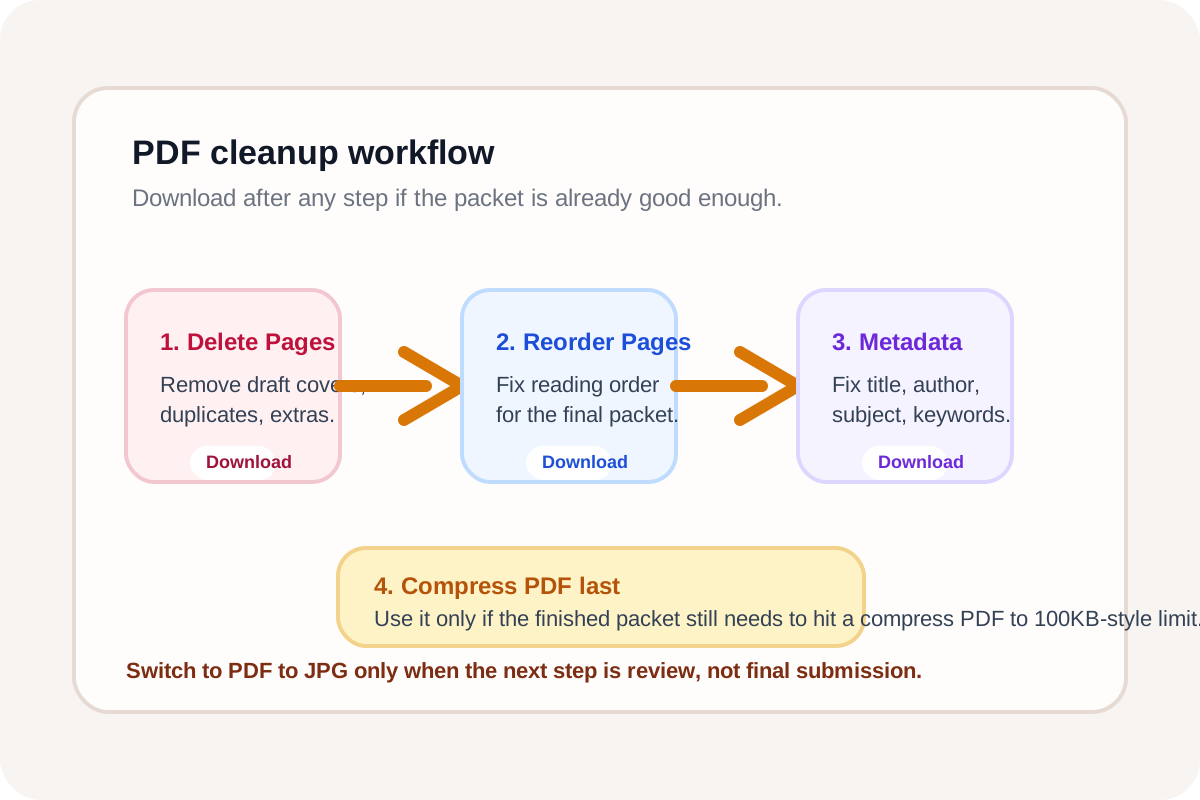
A document packet does not usually fail because it needs one giant transformation. It fails because several smaller issues stack up at the end: the old cover sheet is still inside, the appendix pages are out of order, the document title still says scan-final-v2, and the upload portal refuses the file size. The efficient fix is a decision-oriented chain, not a random sequence of repeated exports.
The four-tool order
- Delete PDF Pages: remove draft covers, duplicate scans, instruction pages, or appendix material that should never reach the final recipient.
- Reorder PDF Pages: rebuild the remaining packet into the reading order the portal reviewer or client will actually expect.
- PDF Metadata Editor: fix title, author, subject, and keywords so the finished file is identifiable once it leaves your desktop.
- Compress PDF: use this last when the content is finally correct and the portal still needs a smaller file.
When to stop and download after each step
- Stop after Delete PDF Pages if the only problem was extra material and the file size is already acceptable.
- Stop after Reorder PDF Pages if the packet was complete but assembled incorrectly.
- Stop after PDF Metadata Editor if the document is structurally correct and only needed cleaner archive or preview signals.
- Continue into Compress PDF only if the finished packet is still too large for email, a form upload, or a compress PDF to 100KB target.
What to check before continuing
- After deletion: confirm you did not remove a signature, instructions page, or required exhibit by accident.
- After reordering: open the page thumbnails again and verify that references in the document still point to the right sequence.
- After metadata cleanup: make sure title and author help the next system identify the packet instead of preserving old scanner defaults.
- After compression: reopen the output and check that signatures, stamps, and small text still remain readable enough for the receiving workflow.
When this workflow should switch direction
If the next task is visual review rather than final submission, stop before compression and consider a PDF to JPG path instead. That is useful when reviewers need page images for markup or chat-based feedback rather than one final locked packet. Otherwise, keep the workflow in PDF form and only download the final compressed version once the packet is complete.
Related UtilFlow moves
If the final packet passes upload limits after compression, download it and stop. If the recipient needs page images for review, continue to PDF to Images next. If only a subset should be sent to a second destination, branch to Extract PDF Pages after the cleanup chain instead of rebuilding the whole packet again.
FAQ
Why compress the PDF last instead of first?
Because compression should happen after the document is already correct. Otherwise you risk optimizing pages you will delete anyway or reviewing page quality before the packet structure is final.
When does compress PDF to 100KB make sense?
It makes sense when a portal or form has a strict upload ceiling and the cleaned packet is still too large after unnecessary pages have already been removed.
When should I use PDF to JPG instead of staying in PDF?
Use a PDF to JPG branch when the next step is visual review, annotation, or page-by-page sharing in chat. Stay in PDF when the document needs to remain one structured submission packet.