Pick Brand Colors From a Screenshot Before Rebuilding a UI or Slide
Use Image Color Picker when the real problem is matching an existing screenshot, logo, or product surface before rebuilding it elsewhere.
Open Image Color Picker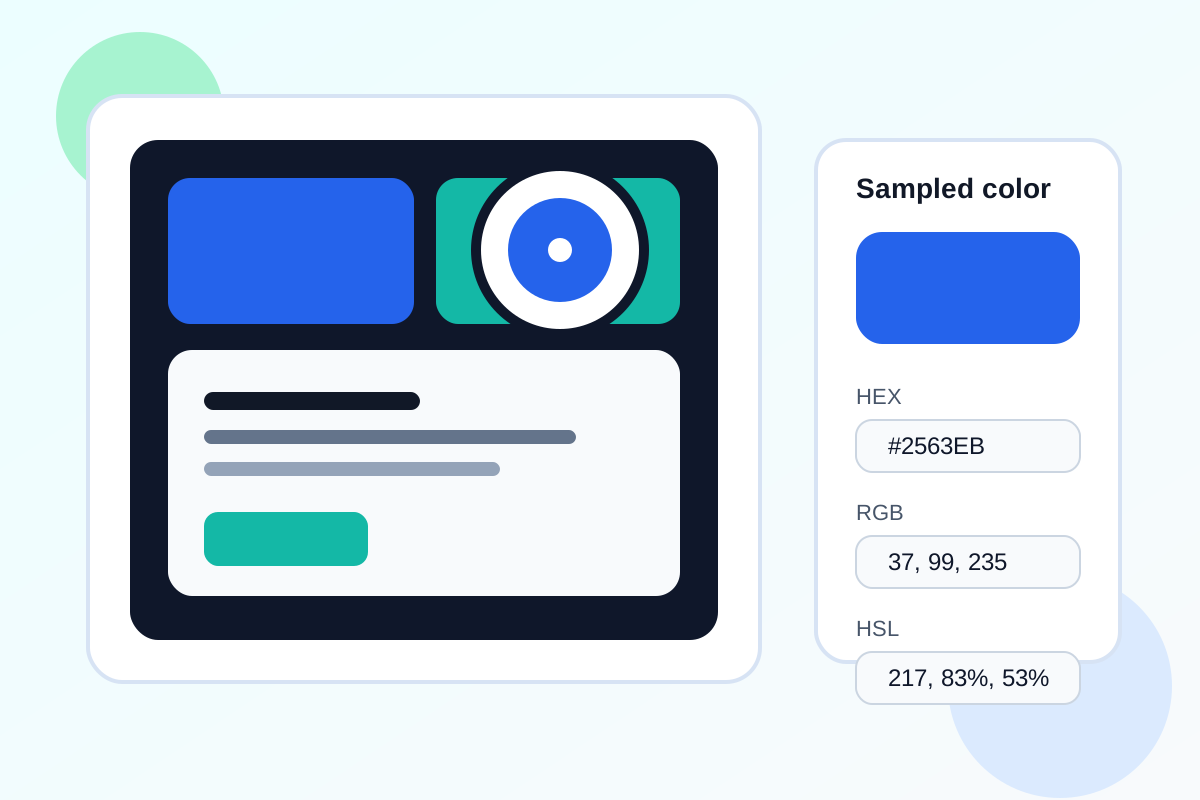
A rebuild often starts with the wrong question. People search for a color code when the real problem is visual matching: a slide needs to look close to the product UI, a one-pager needs to echo a brand screenshot, or a documentation callout should align with an existing visual system. Guessing the blue or green by eye usually leads to small mismatches that make the rebuilt asset feel off.
The practical problem behind color picking
The source file is often not available. You may only have a screenshot, a pasted logo, a product image, or a cropped reference from someone else. In that situation, the useful step is not a full design handoff. It is extracting a few dependable color values so the next asset starts from the right palette instead of a rough approximation.
A clean sampling workflow
- Upload the screenshot, logo, or reference image that contains the color you need to match.
- Click the exact pixel or area that best represents the stable color rather than a shadow, gradient edge, or hover state.
- Copy the format that fits the next tool: HEX for many design and CSS tasks, RGB for image work, or HSL when hue and lightness adjustments matter.
- Sample two or three supporting colors as well so the rebuilt asset has a usable mini-palette instead of one isolated swatch.
What to avoid
- Sampling anti-aliased text edges instead of the real fill color.
- Choosing a gradient highlight when the asset needs the base brand color.
- Assuming one screenshot color is the full design system palette.
- Rebuilding the visual before you collect the supporting neutrals and accents around the primary color.
Related UtilFlow moves
After sampling colors, use HEX/RGB/HSL Converter if the next tool needs a different color format. If the screenshot also needs cleanup before sampling, crop it first so you are picking from the intended area only.
FAQ
Why not just guess the color visually?
Small hue or lightness differences become noticeable quickly when text, buttons, or highlights sit next to the real brand reference.
Which color format should I copy first?
HEX is usually the fastest starting point for UI and slide work, while RGB or HSL can be better when another tool expects those formats.
What if the screenshot uses gradients?
Sample the stable base area first, then sample one or two highlight or shadow colors separately if you need to recreate the effect.