Pick a Brand or Product Color From an Image Before You Rebuild the Asset
Use an image color picker to sample the real color from a screenshot, photo, or product image before you recreate the slide, mockup, label, or banner.
Open Image Color Picker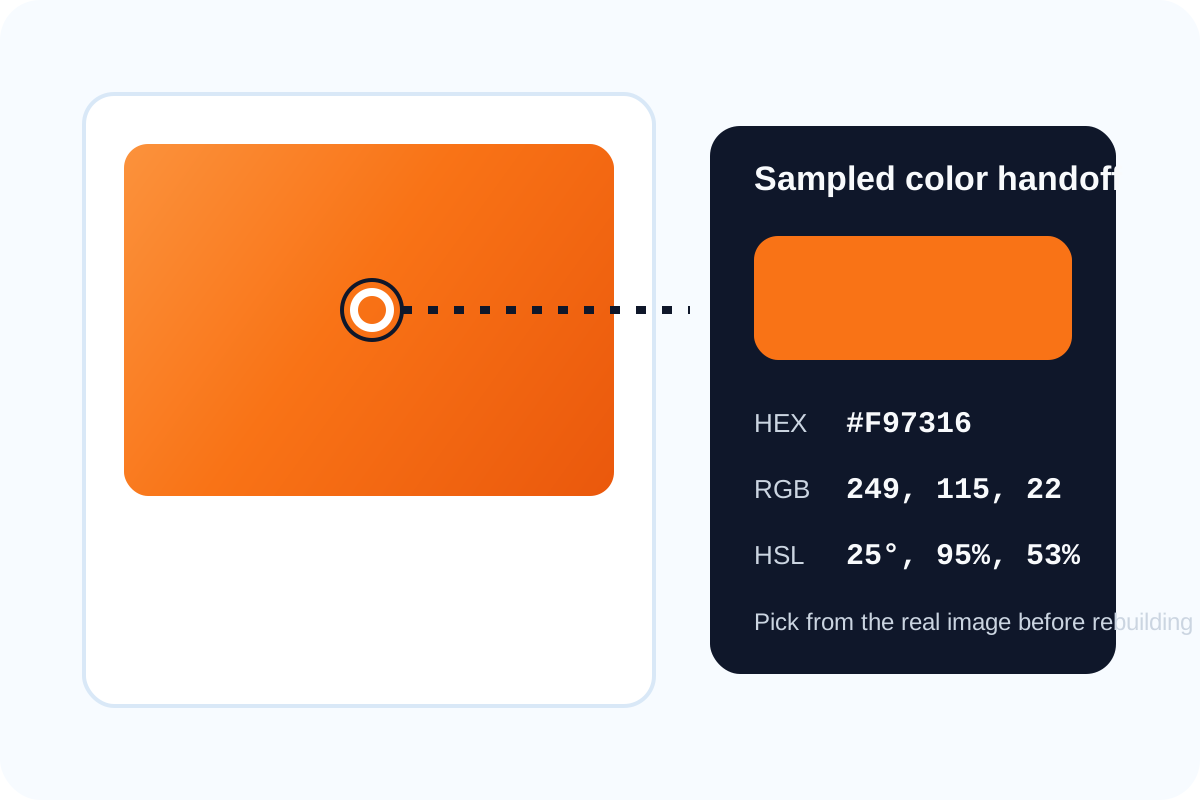
Rebuilding an asset often starts with the wrong shortcut: someone guesses the color instead of sampling it. A screenshot, packaging photo, or old banner may already contain the closest usable source. An image color picker lets you pull that value directly before you start recreating the design in slides, docs, or lightweight graphics.
A simple sampling workflow
- Upload the screenshot, product photo, or old creative that contains the target color.
- Zoom your attention to the actual surface you want to match rather than a shadow, reflection, or antialiased edge.
- Sample the color and copy the HEX, RGB, or HSL value that matches the next tool in your workflow.
- Use the sampled value in a slide, UI draft, label, or color palette and check it against surrounding colors before finalizing.
Where people pick the wrong color
The most common mistake is sampling from a compressed edge, glossy highlight, or tinted shadow instead of the real fill area. Product shots and screenshots often contain multiple close shades, so it helps to click the flat center of the color region whenever possible.
Why multiple color formats help
HEX is convenient for CSS and quick handoff, RGB is useful for some creative and presentation tools, and HSL can make later adjustments easier when you need to keep hue while changing lightness or saturation. The useful workflow is not only picking a color, but carrying it into the next editing environment in the format that environment expects.
Related UtilFlow moves
If one sampled color needs to become a broader set of options, continue into Color Palette. If you need to move between formats after sampling, use HEX/RGB/HSL Converter for a cleaner handoff.
FAQ
How do I pick the most accurate color from an image?
Sample from the flat interior of the color area instead of from edges, shadows, or bright reflections.
Why do I need HEX, RGB, and HSL values?
Different tools expect different formats, and having all three makes it easier to hand the sampled color into design, CSS, or presentation work.
Can I use an image color picker for screenshots?
Yes. It works well for UI screenshots, banners, product images, and any visual where you need to reuse the color accurately.