A PDF to Image Workflow for Fast Review, Then Compress PDF for the Final Send
Use a chained workflow to turn a PDF into reviewable images, shrink the preview, rebuild a shorter packet, and compress PDF output only when the final file still needs help.
Open PDF to Images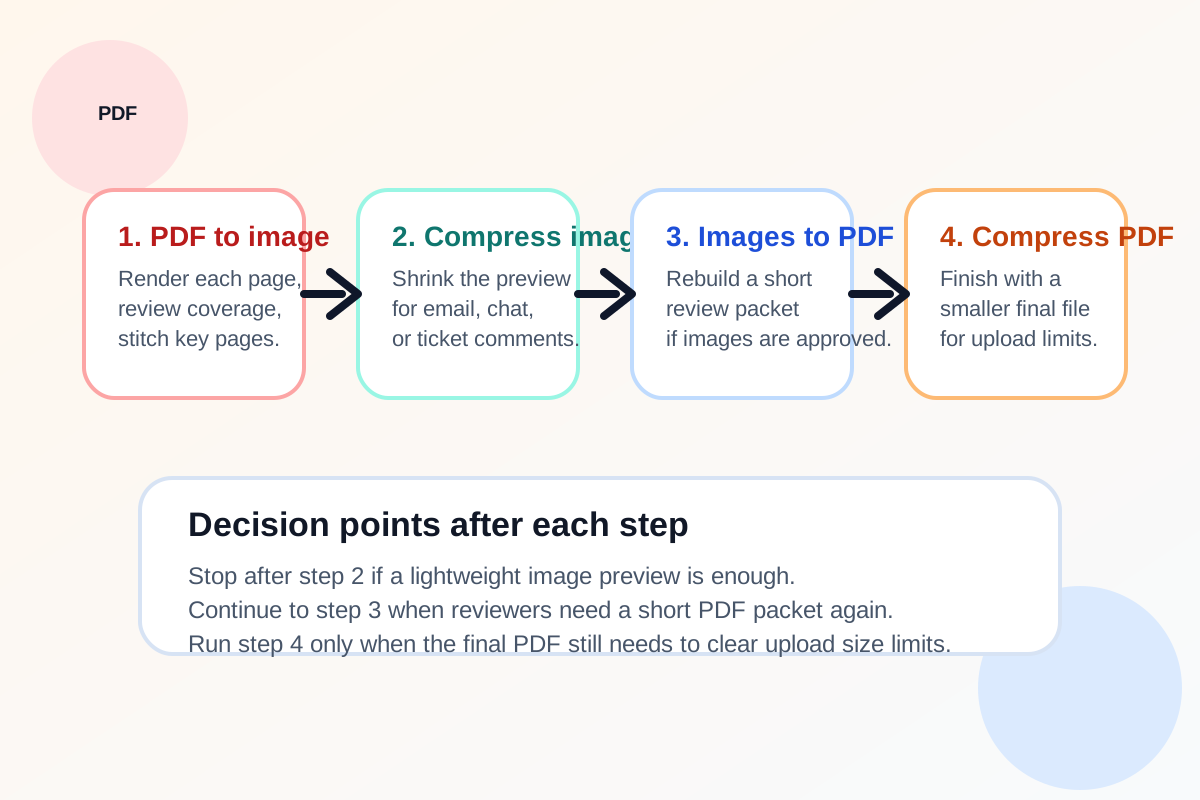
Some document reviews stall because the original PDF is heavy, visually dense, or awkward to comment on in chat and ticket tools. A PDF to image workflow makes the review stage lighter: render the important pages as images, share a smaller preview, then rebuild or compress the final PDF only if the process still needs a document output.
The tool order
- Start with PDF to Images to render each page and decide which pages actually need review attention.
- Continue to Image Compressor when the preview images need to be smaller for chat, email, or ticket uploads.
- Move to Images to PDF only if reviewers approve the selected pages and you need a short PDF packet again.
- Finish with Compress PDF if the rebuilt packet is still too large for the destination upload limit.
When to stop and download after each step
- Stop after PDF to Images when the reviewer only needs page PNGs or one stitched visual summary.
- Stop after Image Compressor when the smaller preview image is enough for Slack, email, or a ticket comment.
- Stop after Images to PDF when you now have the shorter packet you wanted and its size is already acceptable.
- Run Compress PDF only as the final size-control step, not as the first reaction before you remove or isolate what matters.
What to check before moving forward
- After PDF to Images: check page coverage, readability, and whether stitching selected pages makes the review faster.
- After Image Compressor: confirm text and fine lines are still readable at the smaller size.
- After Images to PDF: confirm the order of approved pages and whether the packet still reflects the intended review scope.
- After Compress PDF: confirm that file size dropped enough without making the pages look degraded.
Why this sequence works better than compressing first
Compress PDF is useful, but it does not automatically improve review clarity. If the real task is reviewing a few important pages, turning the packet into images first often creates a better experience. The final compress PDF step is more effective after the packet has already been narrowed to what the reviewer needs.
Related UtilFlow moves
If the problem is page selection rather than preview format, go to Extract PDF Pages first. If the final document needs page numbering after approval, continue from the rebuilt packet into Add Page Numbers to PDF.
FAQ
When is PDF to image better than going straight to compress PDF?
Use PDF to image first when the immediate need is visual review, quick commenting, or lightweight preview sharing rather than just a smaller PDF file.
Why compress the image before rebuilding the PDF?
That lets you create a smaller preview for review channels and decide whether the process even needs a PDF again before rebuilding one.
Which tools are in this chained workflow?
The workflow uses PDF to Images, Image Compressor, Images to PDF, and Compress PDF in that order when the final output still needs a smaller PDF.