Fix the PDF Title and Author Before Search, Preview, or Archive Results Keep Showing the Wrong Document
Use a PDF metadata editor when the file itself is technically correct but the wrong title, author, subject, or keyword signals keep creating confusion in previews, archives, and internal search.
Open PDF Metadata Editor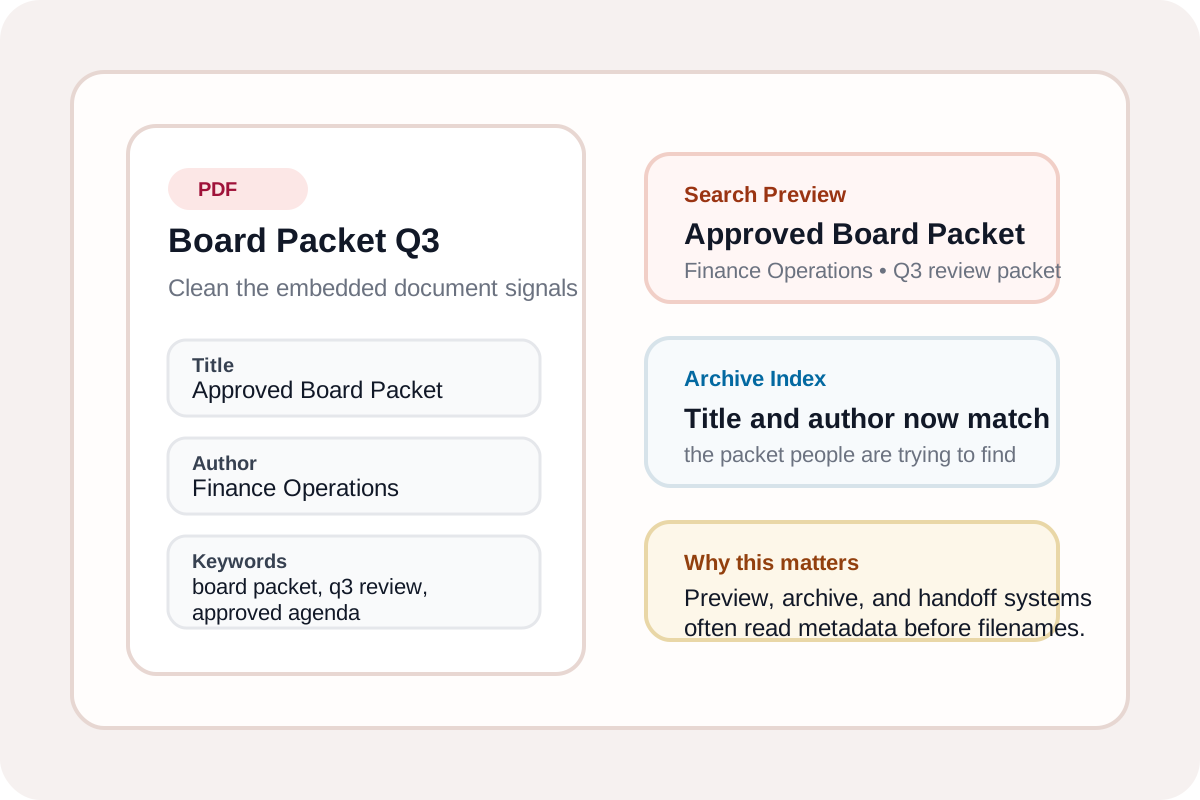
A PDF can be visually finished and still travel through the wrong workflow because its document properties tell the next system the wrong story. The file name may say Final Board Packet, but the embedded title still says Scan 0042, the author is an old export account, and the keywords are blank. That mismatch shows up in search results, document previews, records systems, and shared-drive handoffs long after the pages themselves were approved.
What PDF metadata actually changes
The title, author, subject, keywords, creator, and producer fields do different jobs. Some viewers surface the title in a tab or preview card. Archive and records systems may index title, author, and keywords separately from the visible filename. Creator and producer fields usually matter more for internal provenance than for human-facing search, but they can still help explain which export path made the file.
A technical cleanup pass that pays off later
- Open the finished PDF and review the current document properties before changing anything else.
- Set the title to the document someone should recognize in search or preview, not to a temporary export label.
- Use author and subject fields to reflect ownership and purpose rather than leaving old software defaults in place.
- Add a short, relevant keyword set only when it will help retrieval; do not turn the metadata into a keyword dump.
- Download the updated PDF and reopen it in a normal viewer so you confirm the visible preview now matches the way the document should circulate.
Where this prevents real operational mistakes
- A shared drive search returns several similar files and only the embedded title makes the approved packet stand out.
- A portal preview shows an outdated draft label even though the filename was renamed before upload.
- A compliance archive pulls author or subject fields into its index, making the wrong owner appear in later retrieval.
- A team exports several derivative files from one source PDF and needs the underlying properties to stay consistent across the set.
When to stop here and when to continue
If the pages are already correct, stop after the metadata cleanup and download the file. Continue into Delete Pages, Reorder Pages, or Compress PDF only when the document still has structural or upload problems. If the next step is a review pack such as a PDF to JPG export, clean metadata first so the source file is identifiable before it branches into more outputs.
Related UtilFlow moves
Use Delete PDF Pages when the packet still contains blank covers or appendix pages that should not travel. Use Reorder PDF Pages if the file is searchable but still assembled in the wrong sequence. Use Compress PDF last when the document is correct but the upload limit still fails.
FAQ
Does changing PDF metadata rename the file itself?
No. Metadata changes the embedded document properties, while the visible filename is a separate signal that should also be managed deliberately.
Which fields matter most for everyday document cleanup?
Title, author, and subject usually matter most because they are the fields people and archive systems are most likely to surface during preview and retrieval.
Should I edit metadata before or after other PDF changes?
Usually after the pages are finalized but before the file is archived, uploaded, or used as the source for more derived outputs.