Extract the Needed PDF Pages, Fix Sideways Scans, Add Page Numbers, and Compress for Upload
Use one multi-step PDF workflow when a large packet needs fewer PDF pages, upright scans, reviewer-friendly numbering, and a final compress PDF step before the portal deadline.
Open Extract PDF Pages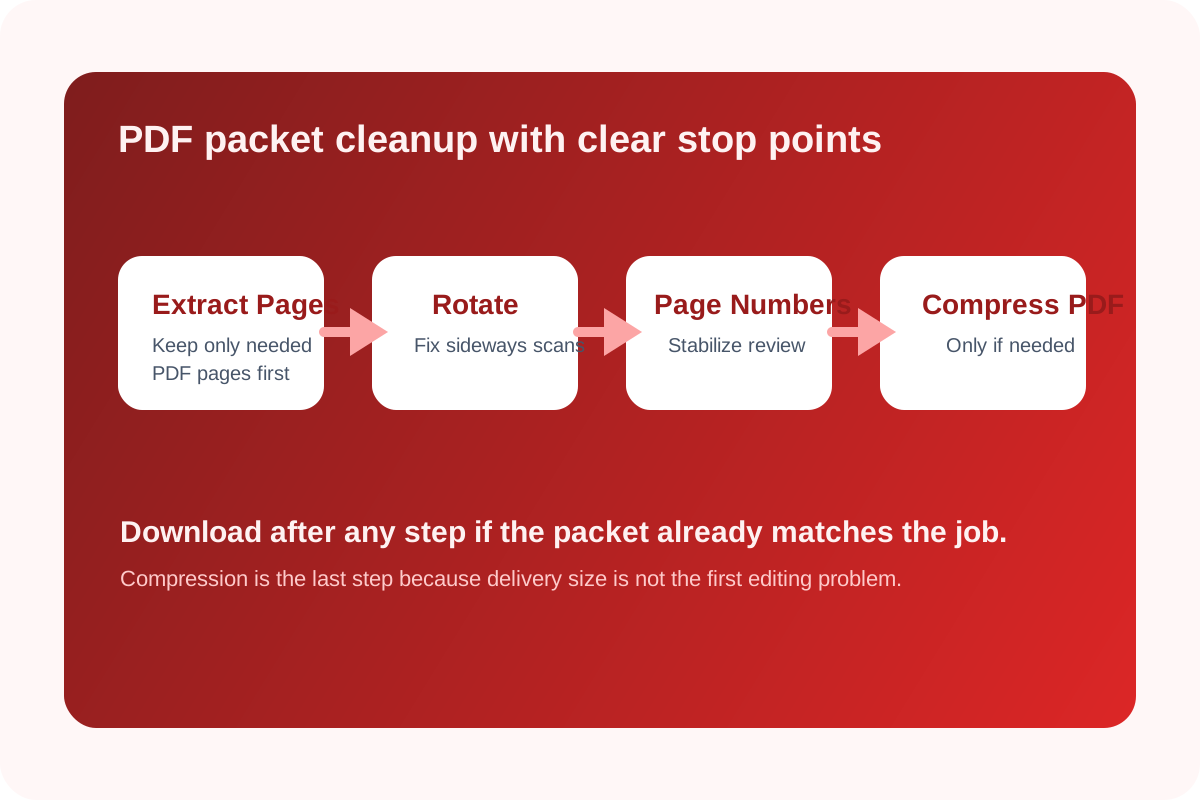
A submission packet can be almost ready and still fail the final handoff for ordinary reasons: too many PDF pages, one sideways scan in the middle, no stable page references for reviewers, and a file size that still triggers an upload warning. Treating that as one vague edit pdf job usually creates extra passes. A cleaner chain is to reduce scope first, fix orientation second, add references third, and compress PDF only after the packet structure is already final.
The tool order
- 1. Extract PDF Pages: keep only the pages the recipient or portal actually needs so the packet gets smaller before any other edit starts.
- 2. Rotate PDF: fix the sideways or upside-down scans only in the reduced packet, which makes the review faster and safer.
- 3. Add Page Numbers to PDF: add stable references after the page set and order are already settled.
- 4. Compress PDF: reduce delivery size only after the PDF pages, orientation, and numbering are final.
When to stop and download
- Stop after Extract PDF Pages if the packet is already the right subset and opens cleanly.
- Stop after Rotate PDF if the real blocker was orientation and the file size is already acceptable.
- Stop after Add Page Numbers if reviewers need references but the portal does not impose a strict upload limit.
- Use Compress PDF only when the cleaned packet still needs a smaller final file for upload, email, or storage rules.
What to check after each step
- After Extract PDF Pages: confirm the kept pages are complete, in order, and no required appendix or signature page was dropped.
- After Rotate PDF: confirm the affected pages are upright without breaking pages that were already correct.
- After Add Page Numbers to PDF: confirm the numbering does not cover important text or signatures and matches the review instructions you plan to send.
- After Compress PDF: confirm the file is smaller but still readable, especially on scanned text and form fields.
Why this order is cleaner
Each step removes one kind of uncertainty. Extracting the PDF pages controls scope. Rotation fixes readability. Numbering adds navigation. Compress PDF handles delivery limits last. If you compress too early, you are optimizing pages that may still be deleted or rotated. If you number too early, the page references can become wrong after later cleanup.
Related UtilFlow moves
If the reduced packet still contains pages that should disappear entirely, use Delete PDF Pages before numbering. If the review process needs visual page images instead of a document, switch into PDF to Images only after the page subset is already correct.
FAQ
Why should extract PDF pages come before the final compress PDF step?
Because removing unnecessary pages first reduces the document scope, which makes every later step faster and avoids optimizing pages that should not ship anyway.
When should I add page numbers in this PDF workflow?
Add them only after the final page set is chosen and the sideways scans are fixed, so the references stay stable for reviewers.
Does every packet need the final compress PDF step?
No. Compress PDF is only necessary when the cleaned packet still exceeds an upload, email, or storage limit after the structural cleanup is complete.