Crop, Watermark, Compress, and Convert One Image Set for Review Handoff Without Reuploading
Use Image Cropper, Add Watermark to Image, Image Compressor, and Image Format Converter in one chain when screenshots or proofs need to become lighter, clearer, and ready for different destinations.
Open Image Cropper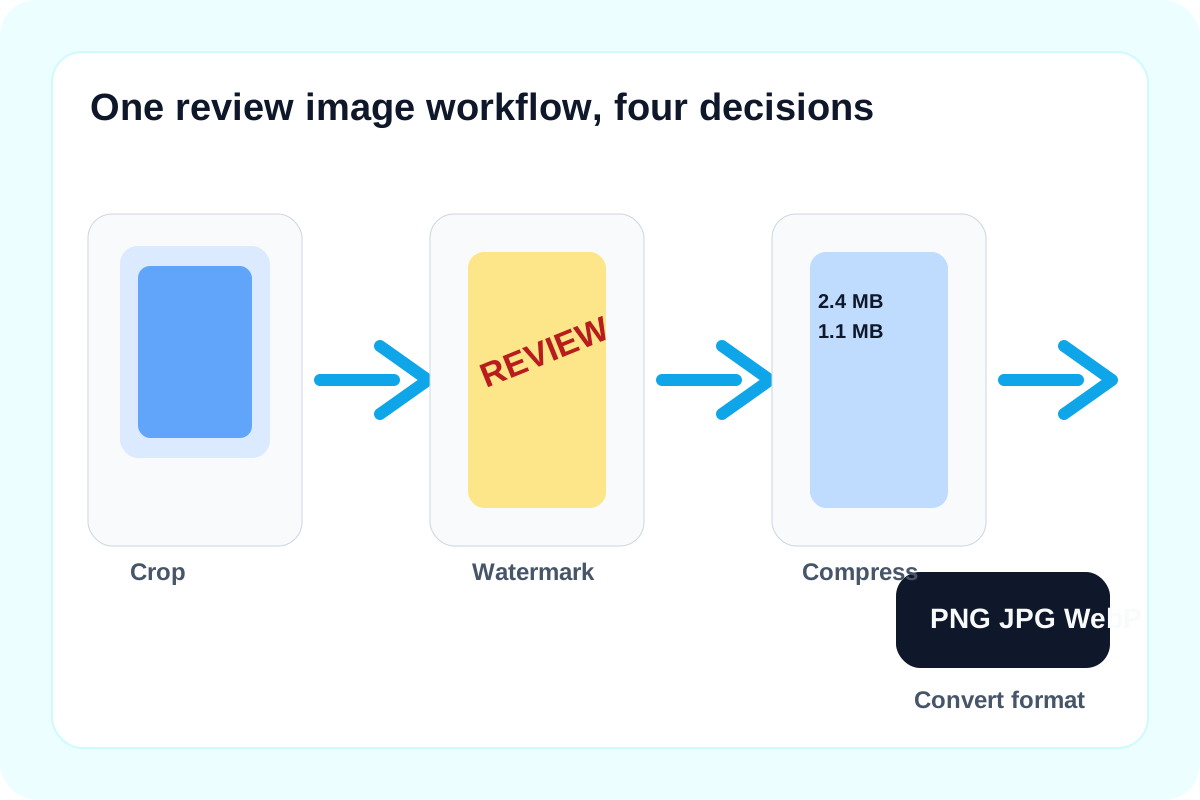
Many review handoffs fail for boring reasons: the screenshot includes too much surrounding UI, the proof is missing a visible review mark, the upload channel rejects the file weight, or the receiving system wants JPG when the team exported PNG. The work is not four separate projects. It is one image workflow, and UtilFlow can keep that chain moving without making you start from the top each time.
The tool order
- Start with Image Cropper when the frame includes extra browser chrome, margins, or background that the reviewer does not need.
- Continue with Add Watermark to Image when the file should be marked as REVIEW, DRAFT, or CLIENT COPY before it leaves your hands.
- Move into Image Compressor when the proof looks right but the attachment, ticket form, or chat tool still rejects the file size.
- Finish with Image Format Converter only if the destination requires JPG, PNG, WebP, or AVIF instead of the file type you already have.
When to stop and download
- Stop after cropping if the only problem was extra framing and the destination accepts the original format and size.
- Stop after watermarking if the marked file is already small enough and the reviewer accepts that format directly.
- Stop after compression if the handoff problem was weight rather than compatibility.
- Use the format conversion step only when a CMS, marketplace, or support form rejects the otherwise-correct file type.
What to check after each step
- After cropping: confirm the evidence, issue area, or product detail is still visible without the removed context.
- After watermarking: confirm the mark protects the review copy without hiding text or fine UI details.
- After compression: confirm small labels, numbers, and edges still read clearly at normal viewing size.
- After conversion: confirm transparency, edges, and final upload behavior still match the destination's expectations.
Why this chained workflow is faster than separate edits
The decision path stays narrow. Each tool solves one blocker at a specific moment: framing, review safety, file weight, or file type. By moving through the steps in order, you avoid compressing the wrong crop, watermarking an oversized frame, or converting formats repeatedly before you know the destination actually needs it.
Related UtilFlow moves
Use Image Metadata Viewer before the chain if you need to inspect dimensions first. Use Image Resizer when the real issue is target width rather than crop, and move into Images to PDF only when the final deliverable should become one ordered document packet instead of separate review images.
FAQ
Why crop before watermarking or compressing?
Because removing unnecessary framing first keeps later watermarking and compression focused on the image area that actually matters.
When should I compress an image instead of converting its format?
Compress first when the file type is already accepted and the real blocker is upload weight or attachment size.
Why leave format conversion for the last step?
Because compatibility is often the last remaining blocker, and converting earlier can create unnecessary extra exports before you know the destination needs them.