Crop Screenshots Before Pasting Them Into Docs or Tickets
Trim screenshots down to the exact evidence someone needs so reports, tickets, and handoff docs stay readable and fast to scan.
Open Image Cropper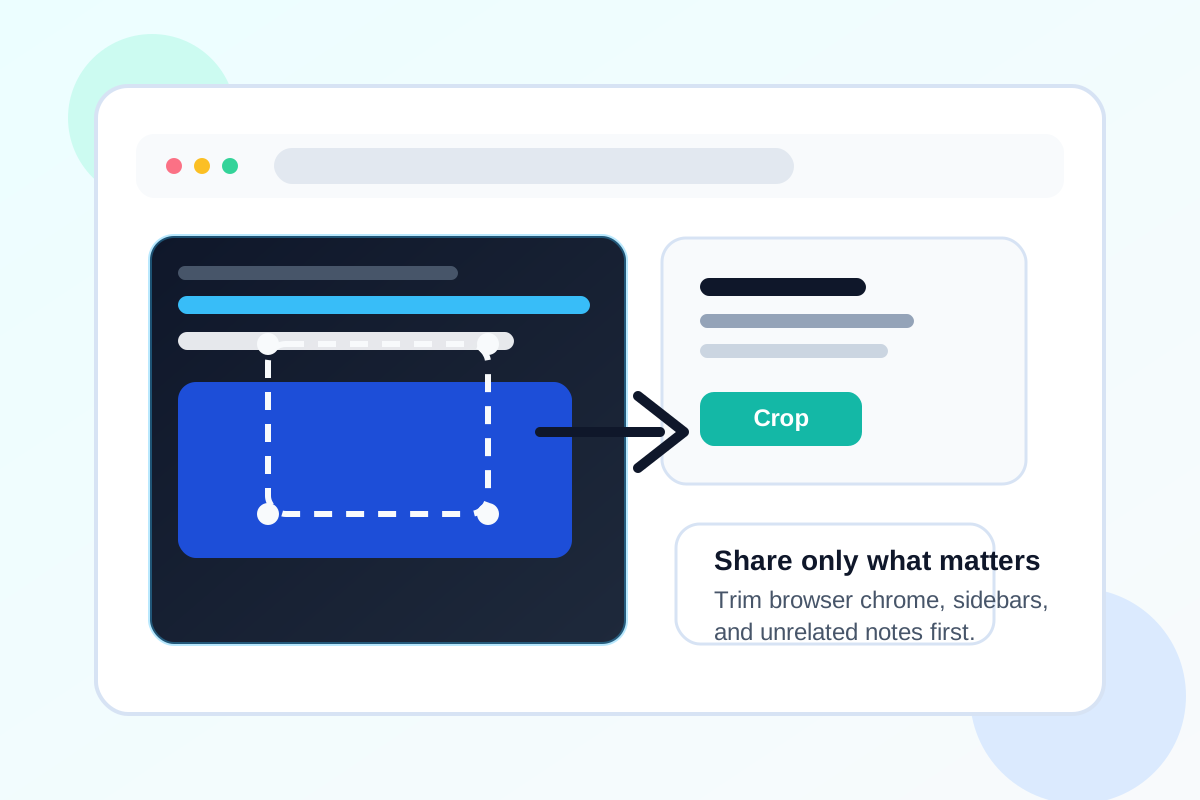
A screenshot is only useful when the important evidence is obvious. Full-screen captures often include browser chrome, sidebars, unrelated tabs, notifications, or personal details that force the next person to hunt for the real point.
What a cleaner screenshot changes
Cropping is less about aesthetics and more about reducing review time. A designer can spot the broken spacing faster, a developer can focus on the failing state faster, and a client can approve the exact section they were supposed to review instead of asking what part of the screen matters.
A simple screenshot-cropping workflow
- Capture the screen once, then decide which area actually proves the issue or shows the result.
- Crop tightly around the component, message, document block, or visual defect that matters.
- Check the edges so the crop still includes enough context to identify where the issue lives.
- Download the trimmed image and paste that version into the ticket, brief, or document instead of the full-screen original.
Where tight crops work best
- Support tickets that need one visible error state instead of an entire desktop.
- Internal docs where the reader only needs the relevant step or menu area.
- Approval messages where the reviewer should compare one section, not the whole page.
- Knowledge-base drafts where screenshots need to stay narrow and readable on mobile.
What to avoid
Do not crop so aggressively that the reader loses orientation. Keep enough surrounding UI to show what element, panel, or document section they are looking at. The goal is focused context, not context removal.
FAQ
Why crop a screenshot instead of sending the full image?
A crop reduces scanning time and keeps the reader focused on the exact issue, result, or approval target that matters.
How tight should the crop be?
Tight enough to remove distractions, but wide enough to preserve the local context around the item you are showing.
When should I crop before adding annotations?
Crop first. That keeps arrows, callouts, or text notes focused on the final image instead of on unused surrounding space.