Convert the Image Format Before a Form, CMS, or Marketplace Rejects the File You Already Finished
Use a simple image format conversion workflow when the asset is done visually but the destination still wants JPG, PNG, WebP, or AVIF instead of what you have.
Open Image Format Converter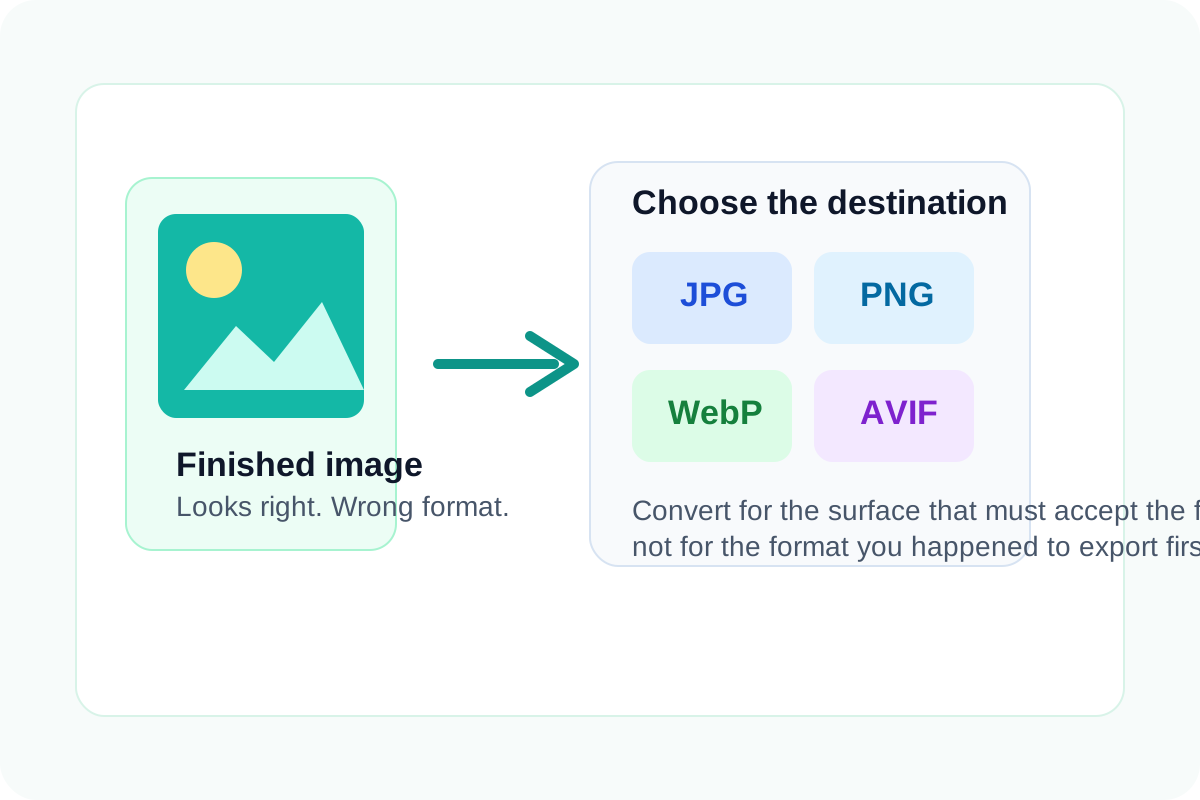
Sometimes the visual work is already done and the only remaining blocker is the file type. A help-center CMS wants JPG, a product form wants PNG, a web page wants WebP, or a modern pipeline prefers AVIF. That is not a design problem anymore. It is a handoff problem, and an image format converter solves it without forcing you to remake the asset from scratch.
A practical conversion workflow
- Start from the version of the image that already looks correct at the size you intend to share.
- Choose the destination first so the output format matches the real requirement instead of guesswork.
- Preview the converted file before downloading it because compression-heavy formats can change fine edges and text.
- Download the converted asset and test it in the actual upload form, CMS, or listing flow before moving on.
- If the file still fails for size rather than format, continue into Image Compressor or Image Resizer instead of repeatedly reconverting it.
How to choose the output format
- Use JPG when broad compatibility matters more than transparency.
- Use PNG when the asset needs crisp edges, screenshots, or transparent areas.
- Use WebP when the destination supports it and the goal is a lighter modern web asset.
- Use AVIF when the environment accepts it and you want an even newer format option for delivery efficiency.
Where this workflow pays off fastest
It is especially useful for marketplace listings, knowledge-base screenshots, lightweight blog assets, product support uploads, and email or doc attachments where the format requirement shows up at the very end. Converting the file keeps the visual decision intact while fixing the compatibility requirement that blocks the handoff.
Check the destination after download
Do not stop at the file extension. Open the real destination and confirm that the converted image still uploads, previews, and renders the way you expect. A fast visual check at the final surface saves you from sending a technically accepted file that still looks wrong in context.
Related UtilFlow moves
Continue with Image Compressor if the file type is right but the upload still fails on weight. Use Image Cropper when the destination wants a different framing, or Add Watermark to Image when the next step is a visible review copy rather than a clean final asset.
FAQ
When should I convert PNG to JPG?
Convert to JPG when the destination prioritizes broad compatibility or smaller photo-style files and transparency is not needed.
What should I inspect after converting an image format?
Inspect small text, edges, transparency, and any visual detail that might change when the file is exported to a different format.
If the upload still fails after conversion, what is usually wrong next?
The next issue is often file size or dimensions, which means compression or resizing is the better follow-up tool.