Check Image Metadata Before You Resize, Crop, or Compress a Bug-Report Screenshot
Use image metadata as the first decision step so you choose the right fix for a screenshot that is too large, too small, or the wrong shape.
Open Image Metadata Viewer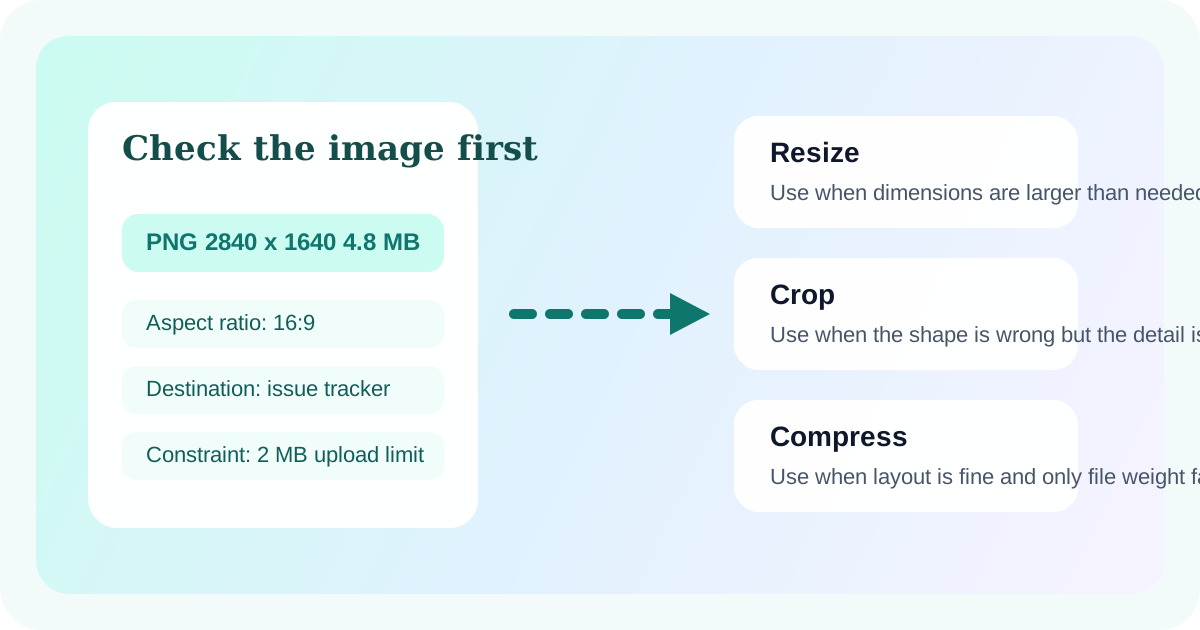
A screenshot can fail a handoff in three different ways: the file is too heavy for the tracker, the image is too small to read after upload, or the aspect ratio makes the important detail disappear in a preview. Looking at the metadata first keeps you from applying the wrong fix.
Read three measurements before editing anything
- Check file size to see whether the real problem is upload weight.
- Check pixel dimensions to see whether the screenshot is large enough for the destination to stay readable.
- Check aspect ratio to see whether the image shape matches the preview frame or embedded slot where it will be shown.
Use the metadata to choose the next tool
Resize when the screenshot is physically larger than the destination needs. Crop when the shape is wrong and the important area can be reframed. Compress when the width and height are already acceptable but the file is still too heavy. That choice is obvious once the measurements are visible.
A quick screenshot-prep tutorial
- Open the screenshot in the metadata viewer before making any edits.
- Write down the target requirement from the bug tracker, support portal, or document where the image will go.
- Compare that requirement with the measured dimensions, aspect ratio, and file size.
- Move into resize, crop, or compression only after one of those constraints is clearly the limiting factor.
Why this matters in bug reports
A bug report loses value when the screenshot becomes blurry, cropped at the wrong place, or too large to attach. Metadata inspection protects the evidence before the screenshot becomes part of the report, not after someone says they cannot open or read it.
Related UtilFlow moves
Use Image Cropper when framing is the issue, Image Resizer when the dimensions are mismatched, and Image Compressor when the screenshot only needs to weigh less without changing its visible layout.
FAQ
Should I compress a screenshot before checking its dimensions?
Not by default. If the screenshot is already too small in pixels, compression only makes the evidence weaker.
What does aspect ratio tell me in a screenshot workflow?
It tells you whether the image shape matches the frame where the screenshot will appear, which helps you decide whether cropping is necessary.
Why check metadata before editing a bug-report image?
Because it separates file-size, dimension, and shape problems so you can choose the right fix on the first pass.