Check Aspect Ratio Before You Crop, Resize, or Place the Image
Use an aspect ratio calculator as a workflow checkpoint before you crop the wrong area, resize into distortion, or place an image into a fixed frame that does not match.
Open Aspect Ratio Calculator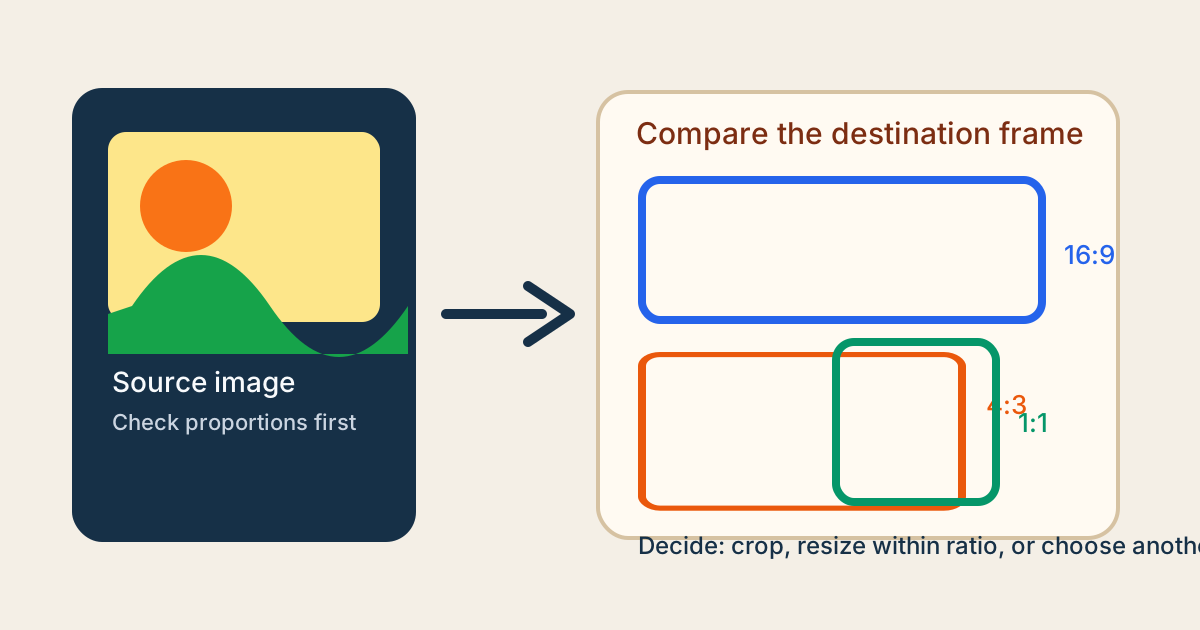
A lot of image mistakes begin before any pixels are changed. Someone knows the destination needs 16:9, a square, or a slide background, but they start resizing first and only later notice that the original proportions never matched the frame. Checking aspect ratio early keeps the decision simple: do you crop, pad, pick another image, or accept a different composition?
A reliable ratio-check workflow
- Start with the source width and height you actually have rather than estimating from memory.
- Compare that ratio against the destination frame such as 16:9, 4:3, 1:1, or a custom layout slot.
- Decide whether the mismatch should be solved by cropping, by resizing within the same ratio, or by choosing a different asset.
- Only after the ratio decision is clear should you move into a cropper, resizer, or document layout tool.
What this prevents
- Stretching an image just to force it into a template slot.
- Cropping away the subject because the final frame is wider or taller than expected.
- Preparing one export that looks fine in slides but fails again in a social or web placement.
- Wasting time resizing several versions before noticing the real problem is proportion, not size.
Why ratio matters more than pixels at the first step
Pixel count tells you how large the file can be rendered. Ratio tells you whether the composition can survive the destination at all. When the ratio is wrong, more pixels do not save the layout.
When to stop and hand off
Stop after the ratio check if the goal was simply confirming which frame the next team or tool should use. Continue only when the result tells you the image actually needs a crop or resize step.
Related UtilFlow moves
Use Image Cropper after the ratio decision when you need to trim the frame intentionally. Use Image Resizer when the ratio already matches and only the output dimensions need to change.
FAQ
Why check aspect ratio before resizing an image?
Because resizing alone does not fix a frame mismatch. The ratio check tells you whether the image can fit the destination without distortion.
What if my image ratio does not match the template?
Choose between cropping, padding in another design tool, or selecting a different source asset instead of stretching the image.
When is an aspect ratio calculator most useful?
It is most useful before social exports, presentation layouts, web hero placements, screenshots, and any workflow where one image must fit a predefined frame.