Use a PDF Pages Remover First, Then Reorder, Label, and Compress a Portal-Ready Packet
Clean a submission packet with Delete Pages, Reorder Pages, PDF Metadata, and Compress PDF so the final file is smaller, clearer, and easier for a portal reviewer to trust.
Open Delete PDF Pages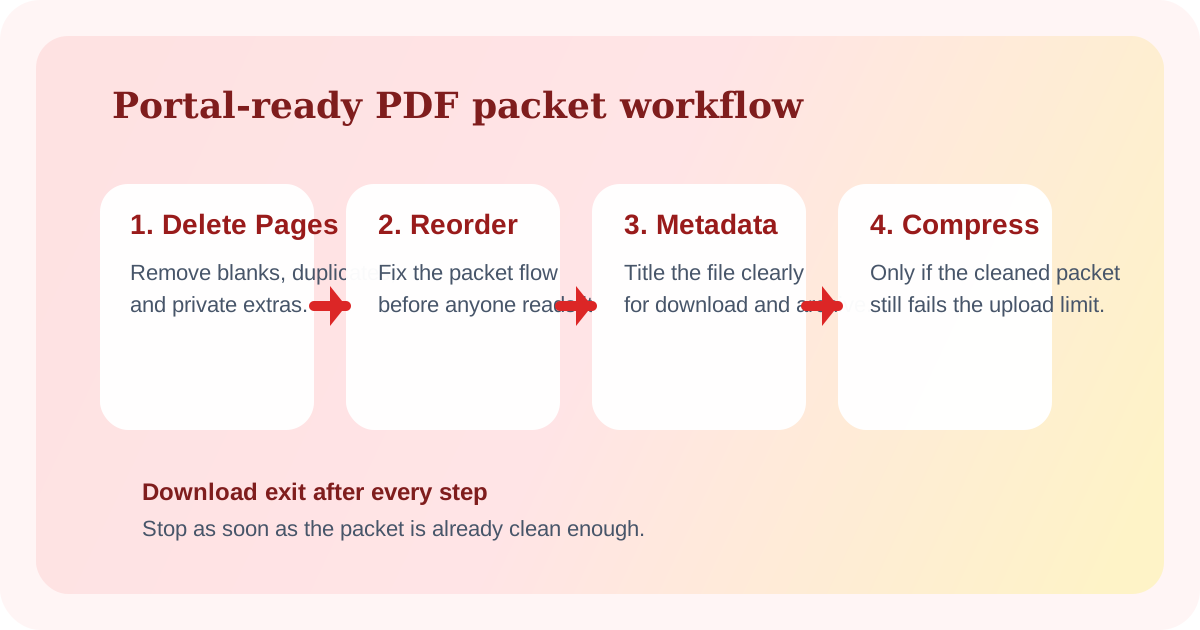
A portal upload usually fails for one of four boring reasons: the packet still contains blank or private pages, the order is confusing, the file name and document properties are vague, or the final PDF is heavier than the form allows. That is why a pdf pages remover step is often the real start, even when the original search felt more like a broad pdf pages editor problem.
The tool order
- Start with Delete Pages to remove blank scans, duplicates, old cover sheets, or private pages that should never reach the portal.
- Continue to Reorder PDF Pages when the remaining packet still reads out of sequence after cleanup.
- Move into PDF Metadata to fix the title, subject, or other identifying document properties so the downloaded file is easier to recognize later.
- Finish with Compress PDF only if the cleaned packet is still too large for upload or slow to send.
When to stop and download
- Stop after Delete Pages if removing the extras already creates the exact upload-ready packet.
- Stop after Reorder PDF Pages if the file now reads clearly and size is not a problem.
- Stop after PDF Metadata if the packet is correctly structured and you only needed better document labeling for the recipient or archive.
- Use Compress PDF only when the cleaned document still fails the upload limit or needs a lighter final handoff.
What to check after each step
- After Delete Pages: confirm that no required pages were removed with the extras.
- After Reorder PDF Pages: confirm the sequence now matches how the reviewer expects to read the packet.
- After PDF Metadata: confirm the visible file still opens normally and the identifying fields now match the document's real purpose.
- After Compress PDF: compare file size savings against readability on the pages that matter most.
Why this works better than one vague pdf pages editor step
A generic pdf pages editor search hides four different jobs. The pdf pages remover stage is about scope cleanup. Reordering is about narrative flow. Metadata is about identification after download. Compression is about transport limits. Keeping those jobs separate gives you clearer checkpoints and fewer accidental regressions.
Related UtilFlow moves
If the packet should become a smaller subset instead of a lightly edited version, switch to Extract Pages. If reviewers need page snapshots rather than another document file, continue into PDF to Images after the page-order step instead of compressing the PDF immediately.
FAQ
When is a pdf pages remover workflow better than rebuilding the whole packet?
It is better when most of the document should stay intact and you only need to remove the pages that create confusion, privacy risk, or extra file weight.
What makes this different from a generic pdf pages editor workflow?
It breaks the job into scope cleanup, sequence cleanup, document labeling, and size cleanup so you can stop after the exact step that solves the problem.
Should compression come before or after page cleanup?
After. Removing pages and fixing order first usually creates a cleaner packet and can reduce the final size target before compression even starts.