Turn One Brand Color Into a Usable Palette Before You Build the Slide or UI
Use a Color Palette Generator when the problem is not picking a favorite color but turning one known brand color into a practical working set.
Open Color Palette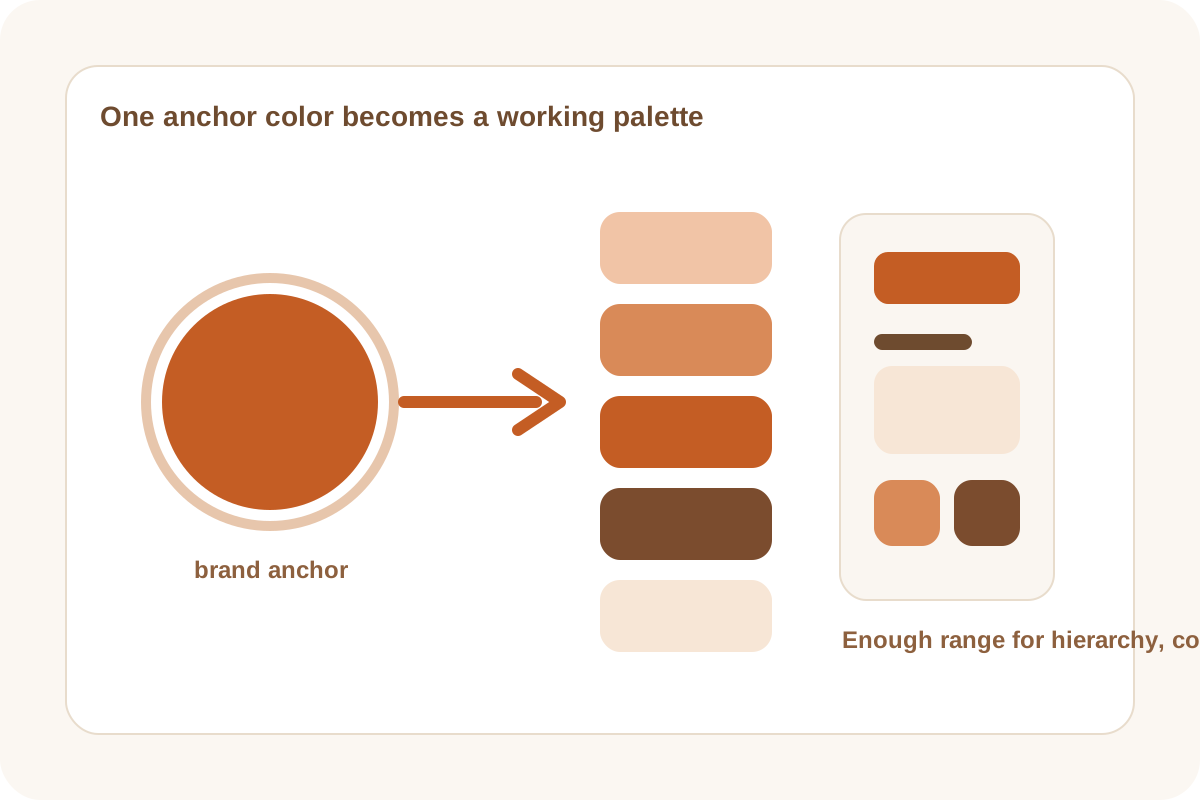
A lot of palette work begins with a color you already trust. The problem is everything around it. A slide, simple UI, one-pager, or social asset needs supporting tones, contrast, and a few safer secondary colors. Without that, people keep re-picking colors by eye and the visual system drifts before the project is even real.
The real problem is expansion, not inspiration
When a team already has one anchor color, the question becomes practical: what should the background use, which darker tone supports headings, what accent can appear without clashing, and which lighter value keeps cards or sections separated? A palette generator helps because it turns one trusted reference into a working range quickly.
A clean palette-building workflow
- Start with the brand or reference color that must stay stable.
- Generate nearby and complementary options instead of manually guessing every supporting tone.
- Pick only the few colors needed for the current job: usually a primary, one or two supporting accents, and neutrals or lighter variants.
- Preview the palette against the actual asset type so you catch clashes before the colors spread into slides, screenshots, or UI blocks.
Why one good color is not enough
A lone brand chip looks decisive, but real layouts need hierarchy. Titles, surfaces, emphasis, borders, badges, and charts all compete for space. A usable palette gives those elements a relationship instead of forcing every choice back to the same saturated source color.
Where this helps most
- Quick presentation themes that should feel branded without becoming heavy.
- Simple UI mockups where one accent color needs supporting surfaces and states.
- Marketing or social graphics that need coordination across multiple tiles.
- Internal documents or dashboards that should look intentional without a full design-system exercise.
Related UtilFlow moves
If the source color lives inside an image or screenshot, sample it first with Image Color Picker. If the chosen palette must move into exact HEX, RGB, or HSL values next, continue into HEX RGB HSL Converter.
FAQ
When should I use a palette generator instead of picking colors manually?
Use it when you already have an anchor color and need fast, coordinated supporting colors for a real asset or layout.
How many colors do I really need for a quick project?
Usually fewer than you think: a primary, one or two accents, and a small set of lighter or neutral support colors.
What should I check before committing to the palette?
Preview the colors in the actual slide, card, or UI context so contrast and hierarchy problems show up early.