How to Use Split PDF in a Practical Online Workflow
Split a PDF into separate page files. Learn when this tool is useful, what problems it solves, and how to fit it into a practical online workflow.
Open Split PDF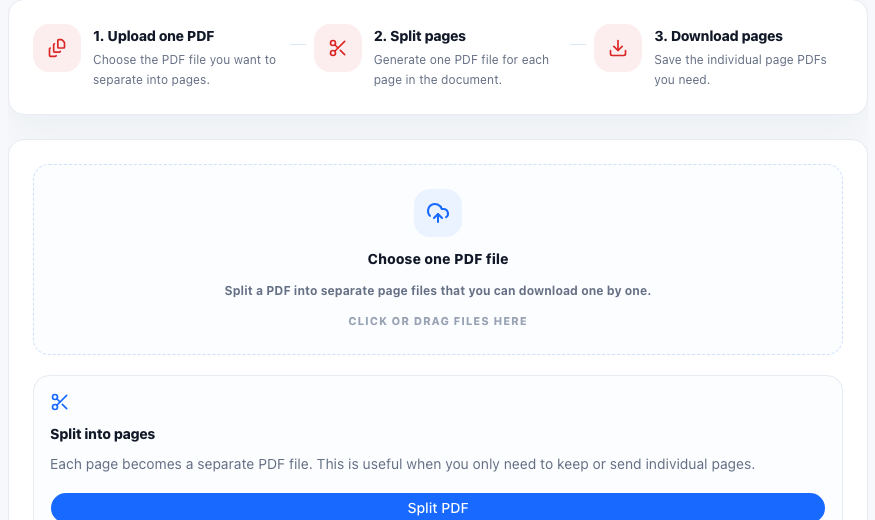
Split PDF is useful when you are submitting a report or application packet and need a fast way to handle the task without switching into a heavier workflow. Split a PDF online into individual page PDFs. Use it when you need to separate pages from a scan, send one page from a document, or break a large PDF into smaller files.
The real problem this helps solve
PDF problems usually appear at the last step of a workflow: the file is too large, pages are in the wrong order, text is hard to extract, or only part of the document should be shared.
For split PDF tasks, the important part is not only running the tool. The useful result is a cleaner output that can be used in a report, document, codebase, upload form, message, or review process without creating extra manual work.
A practical workflow
- Upload one PDF: Choose the PDF file you want to separate into pages.
- Split pages: Generate one PDF file for each page in the document.
- Download pages: Save the individual page PDFs you need.
Technical notes
Browser PDF tools typically read the document structure, page objects, metadata, or rendered pages, then create a new PDF or extracted output based on the selected operation.
Split PDF is useful when you need to complete a common pdf tools task quickly, compare results, prepare clean output, or avoid opening a heavy desktop app for a small job.
Searches this guide helps answer
- split pdf online
- split pdf into pages
- separate pdf pages
- online pdf splitter
Related workflow ideas
This task often connects with Extract PDF Pages, Delete PDF Pages, Reorder PDF Pages, Merge PDF. Use them together when the job needs more than one cleanup, conversion, validation, or export step.
FAQ
When should I use Split PDF?
Use Split PDF when you need to split a PDF into separate page files. It works best when you want a quick online workflow with clear input and output.
What should I check before copying the result?
Check that the input is complete, the selected options match your goal, and the output includes the labels, formatting, or file structure needed for the next step.
Can Split PDF be part of a larger workflow?
Yes. Many users combine it with related UtilFlow tools when they need to clean, convert, validate, compress, extract, or prepare content before sharing it.