Sketch a quick whiteboard, resize it for docs, and compress only if sharing still fails
Run a simple multi-step tool workflow that starts with a fast whiteboard sketch, matches the image to its destination, and only compresses when the final share still needs help.
Open Online Whiteboard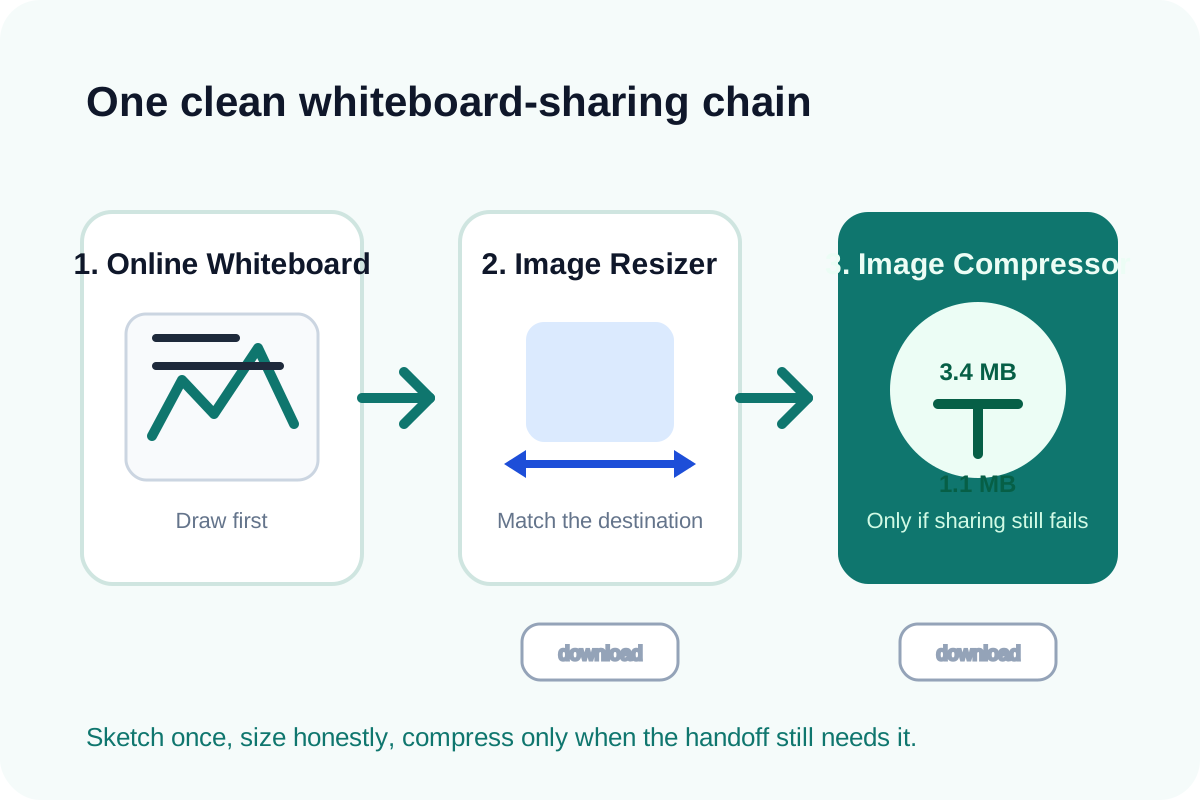
A lot of useful diagrams are temporary: a meeting sketch, a rough system flow, a content map, or a support explanation drawn quickly to unblock the next conversation. The problem starts when that sketch leaves the whiteboard. One destination wants a narrower image, another wants a lighter upload, and someone ends up taking screenshots of screenshots. A cleaner chain is to draw once, size for the real destination second, and compress only if the final file still creates friction.
Tool order for this multi-step tool workflow
- 1. Online Whiteboard: sketch the diagram or note map, preview it, and export the PNG only when the drawing itself is finished.
- 2. Image Resizer: set the width and height that match the real destination such as a knowledge-base page, ticket, or chat-friendly image slot.
- 3. Image Compressor: reduce file weight only if the resized image is still heavier than the upload limit or slower to share than it should be.
When to stop and download
- Stop after Online Whiteboard when the raw PNG already fits the destination and the only job was creating the sketch.
- Stop after Image Resizer when the problem was dimensions, not file weight, and the resized result is already easy to paste or upload.
- Continue to Image Compressor only when the resized output still feels too heavy for the final handoff or the destination imposes a real file-size limit.
What to check after each step
- After Online Whiteboard: confirm the drawing is complete, readable, and worth preserving before you optimize anything else.
- After Image Resizer: confirm text labels, arrows, and line thickness still read cleanly at the actual published size.
- After Image Compressor: confirm the lighter file did not blur the small annotations or turn thin lines into fuzzy edges.
Why this sequence stays cleaner than resizing first in a docs app
Document editors and chat tools are poor places to solve asset quality problems because they hide the actual image state. Drawing first keeps the idea clean. Resizing second matches the destination honestly. Compression last treats file weight as a delivery constraint instead of letting it distort the sketch before you know whether it was even necessary.
Related UtilFlow moves
If the exported sketch needs tighter framing before resize, add Image Cropper between the whiteboard and resize steps. If the final explanation should also link to a follow-up page or form, generate a QR code separately after the image itself is already stable.
FAQ
Why resize before compressing a whiteboard export?
Because the destination dimensions are usually the real constraint first, and shrinking the image to the right size often removes the need for aggressive compression.
When should I stop after the whiteboard step?
Stop there when the exported PNG is already readable, lightweight enough, and correctly sized for the place where it will be shared.
What makes this a good chained workflow?
Each tool removes one specific uncertainty in order: first the sketch exists, then the size matches the destination, and only then does file weight become worth optimizing.