Run a PDF to Image Converter First, Add Review Watermarks, Then Use an Image to PDF Converter for a Safe Packet
Use PDF to Images, Add Watermark to Image, Images to PDF, and Compress PDF in one chain when review pages should be visible, marked, and easy to share without exposing the clean original packet.
Open PDF to Images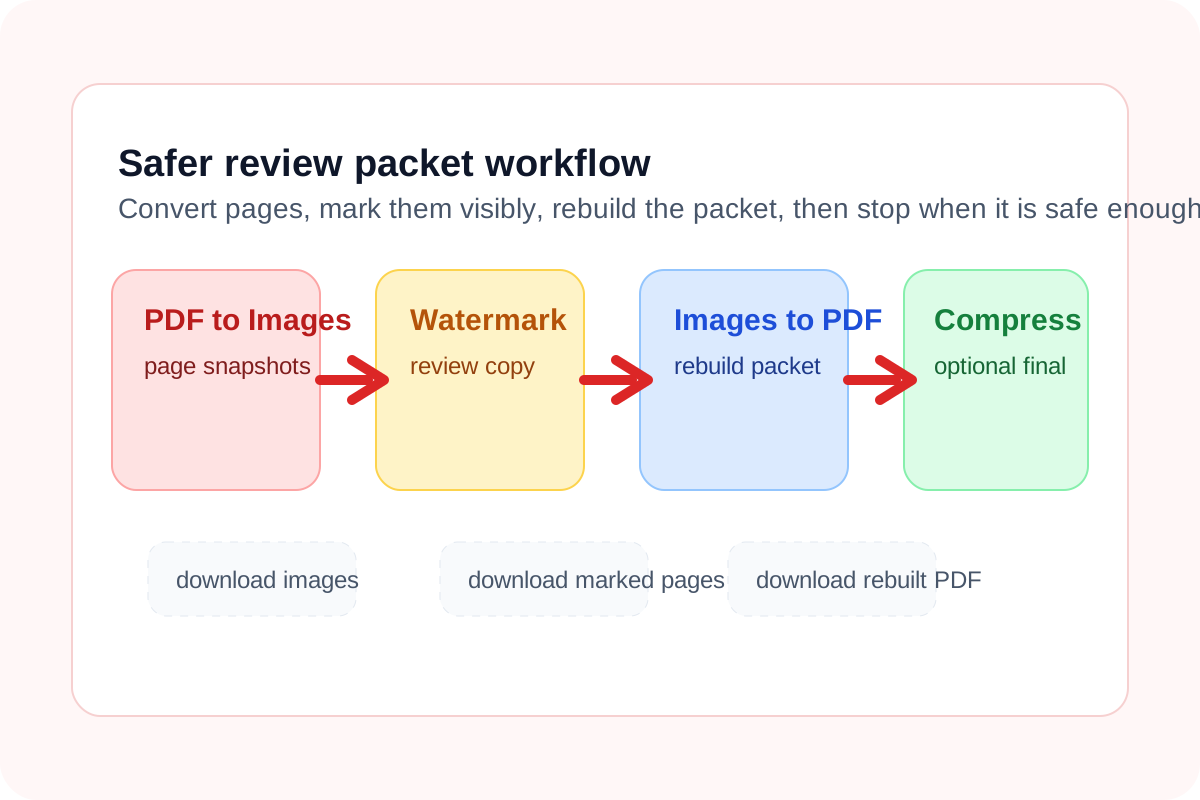
Sometimes the problem is not editing a PDF. The problem is sending a review copy without handing over a clean reusable original. That is where a pdf to image converter step helps first. Once the pages become images, you can add a visible review mark, rebuild only the pages you want to share, and use an image to pdf converter flow for a safer packet.
The tool order
- Start with PDF to Images when the source packet needs page-by-page review output rather than another editable PDF pass.
- Continue with Add Watermark to Image on the pages that should carry a visible DRAFT, REVIEW, or CLIENT COPY mark.
- Move into Images to PDF when the marked JPG or PNG pages should become one ordered packet again.
- Finish with Compress PDF only if the rebuilt review packet is still heavier than the upload channel or email handoff allows.
When to stop and download
- Stop after PDF to Images if the reviewer only needs page snapshots or separate image files.
- Stop after Add Watermark to Image if the destination accepts marked image files directly and a rebuilt PDF would only add friction.
- Stop after Images to PDF if the marked packet is readable and already small enough to share.
- Use Compress PDF only when the rebuilt review file still needs a smaller final transport size.
What to check after each step
- After PDF to Images: confirm the converted pages stay readable and that the pages selected for sharing are the right ones.
- After Add Watermark to Image: confirm the watermark is visible enough to protect the review copy without hiding the content that must still be read.
- After Images to PDF: confirm page order, page completeness, and that the rebuilt packet behaves like the reviewer expects.
- After Compress PDF: confirm the pages still read clearly at the sections where comments or approvals will happen.
How the chained handoff stays quick in UtilFlow
This workflow is especially practical because the converted page images can continue into the next image tool automatically, and the rebuilt PDF can continue into the next PDF tool automatically. That keeps the review chain decision-oriented: convert, mark, rebuild, and stop the moment the packet is safe enough to send.
Where the live PDF query language fits
Google Trends itself returned HTTP 429 during this run, so the closest live related-query fallback was Google suggestion language. That current query language strongly surfaced pdf to image converter, image to pdf converter, and pdf pages to jpg phrasing, which aligns with the exact review workflow here: turn document pages into image pages, mark them visibly, and rebuild only the review-safe packet.
Related UtilFlow moves
If the real job is removing pages rather than protecting review copies, switch to Delete Pages or Extract Pages first. If reviewers need image cleanup before watermarking, continue from the page images into Crop Image or Image Compressor before rebuilding the PDF.
FAQ
Why use a pdf to image converter before watermarking a review packet?
Because converting the pages to images makes it easy to add a visible review mark without editing the clean original PDF directly.
When is an image to pdf converter better than sending separate watermarked pages?
It is better when the reviewer expects one ordered packet for reading, approval, upload, or archiving instead of a loose set of page images.
What does pdf pages to jpg language mean in this workflow?
It reflects the page-by-page conversion intent: turning PDF pages into image files so they can be reviewed, marked, and optionally rebuilt into a new packet.