Resize Images, Create an Image to PDF Packet, and Compress PDF Only If Upload Limits Still Fail
Use a chained workflow to shrink oversized photos first, build one image to PDF handoff file, and run compress PDF only when the final upload still needs extra help.
Open Images to PDF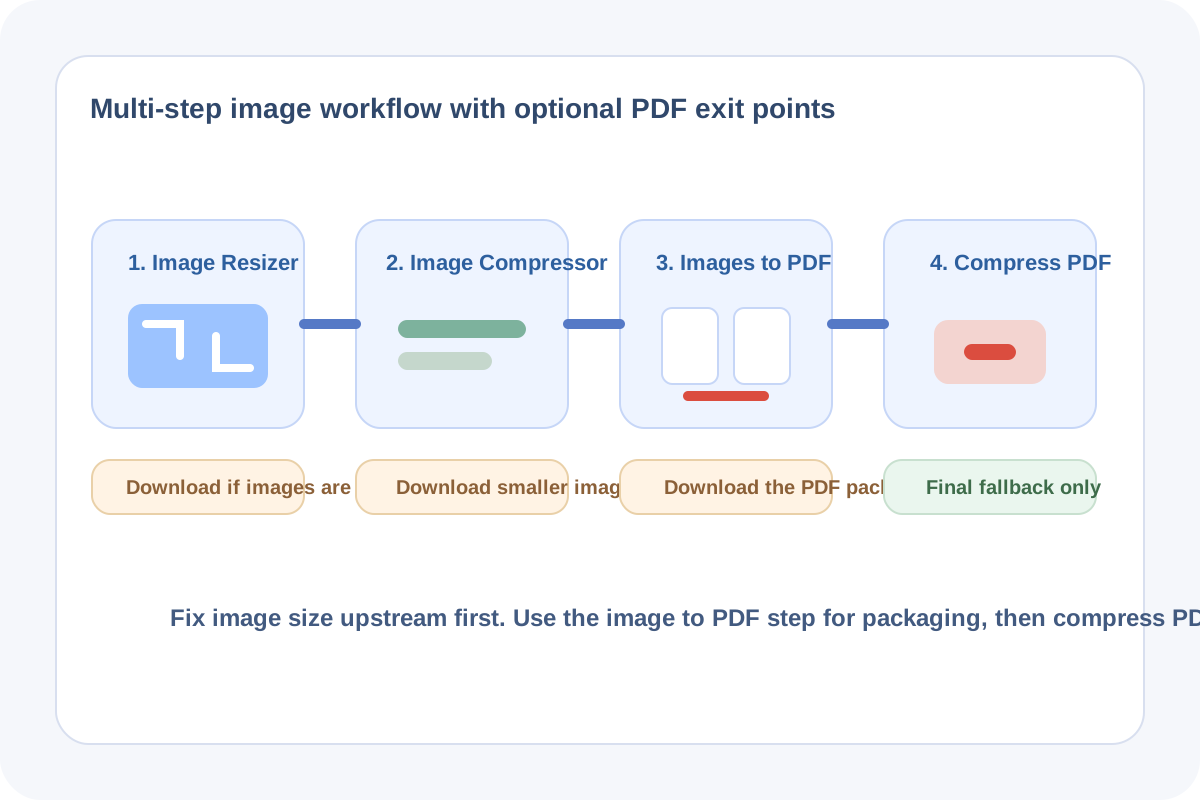
A lot of upload problems start before the PDF exists. Phone photos, screenshots, and scans are often far larger than the destination needs, so turning them into one document too early just wraps the size problem into a single file. A cleaner approach starts by shrinking the images first, moves into the image to pdf step only when the visuals are already right, and keeps compress PDF as the last fallback instead of the first reaction.
The tool order
- Start with Image Resizer when the source photos are much larger than the portal, recruiter, or client really needs.
- Continue to Image Compressor once the dimensions are reasonable but the files are still heavy for chat, email, or upload.
- Move to Images to PDF when the smaller images should become one handoff document, which is the practical image to pdf step.
- Finish with Compress PDF only if the final document still fails the upload limit after the earlier size cleanup is already done.
When to stop and download
- Stop after Image Resizer if the destination accepts separate images and the dimension problem is already solved.
- Stop after Image Compressor if the smaller image files are the actual deliverables for chat, ticket, or email review.
- Stop after Images to PDF when the one-document handoff is ready and the file size is already acceptable.
- Run Compress PDF only when the completed document still fails the real upload rule.
What to check after each step
- After Image Resizer: confirm the images are still large enough to keep text, signatures, or product details readable.
- After Image Compressor: confirm edges, labels, and small text remain clear at the new quality level.
- After Images to PDF: confirm page order, page coverage, and whether the image to pdf packet now matches the intended submission scope.
- After Compress PDF: confirm the file finally clears the limit without making the document feel degraded.
Why this works better than starting with compress PDF
Compress PDF is useful, but it is more effective after you remove unnecessary image weight upstream. If the source photos are still oversized, the final PDF inherits that inefficiency. Resizing and compressing the images first keeps the document step focused on packaging, not on rescuing a bloated source set.
Related UtilFlow moves
If the image packet needs visual cleanup before becoming a document, add Image Cropper between the first two steps. If the final PDF should include only certain pages from a larger packet later, continue into Extract PDF Pages after the document is created.
FAQ
Why start with image resizing before an image to pdf step?
Because shrinking oversized source images early usually removes more unnecessary weight than trying to fix the final document afterward.
When should I run compress PDF in this workflow?
Only after the image-to-document handoff is complete and the finished PDF still fails the real upload limit.
Which tools are in this multi-step tool workflow?
The workflow uses Image Resizer, Image Compressor, Images to PDF, and Compress PDF in that order.