How to Remove Blank or Private Pages Before Uploading a PDF
Delete the pages a recipient should never see so the final PDF is smaller, clearer, and safer to share.
Open Delete PDF Pages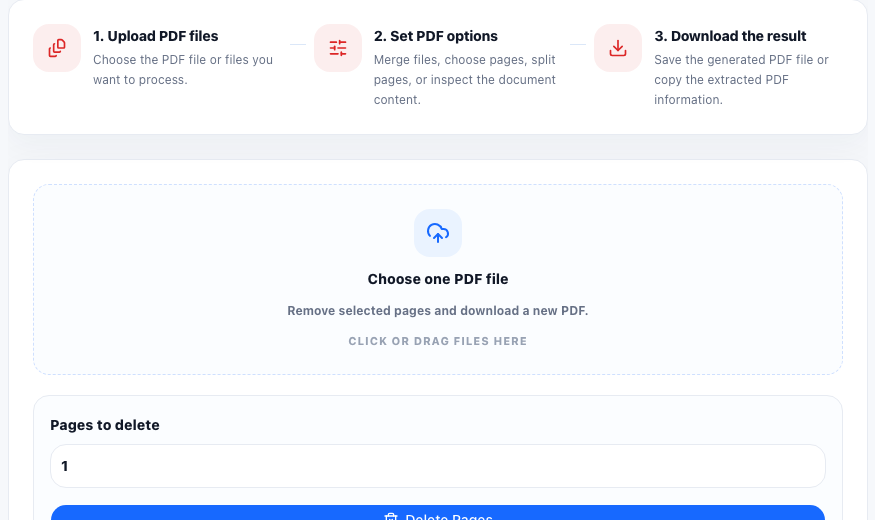
A PDF often contains more than the next step actually needs: a cover sheet, duplicated scan, blank separator, internal note, or a page with personal details that should not leave the original packet. The problem is not just file size. The bigger risk is sending pages that create confusion or expose information that was never meant for that recipient.
Why this happens so often
Large PDFs are usually assembled from multiple steps: scans, exports, signatures, appended receipts, merged reports, or reused templates. By the time the document is ready for upload, a few irrelevant pages are easy to miss because the file still opens and looks broadly correct.
A page-removal check before sharing
- Open the original PDF and note the exact page numbers that should be removed.
- Delete only the unnecessary pages or ranges instead of rebuilding the whole document from scratch.
- Download the cleaned file and reopen it immediately.
- Confirm that page numbering, page order, and the remaining content still make sense after removal.
- Rename the cleaned version clearly so it is not confused with the original packet.
Deleting pages versus splitting a PDF
Deleting pages is best when most of the document should stay intact and only a few pages need to disappear. Splitting or extracting pages is better when you only need a small subset of the original file. The distinction matters because it keeps the workflow minimal.
The last check that matters
Always open the final PDF after deletion. A clean page range on paper is not enough. The real confirmation is that the exported document reads naturally, contains no hidden extras, and is the exact version you intend to upload or send.
FAQ
When should I delete pages instead of splitting the PDF?
Delete pages when most of the PDF should stay the same and you only need to remove a few unwanted pages.
Will deleting pages affect the original file?
No. The workflow creates a new PDF output while the original source file remains unchanged.
What pages are commonly removed before upload?
Blank scans, duplicate pages, cover sheets, appendices, unrelated attachments, and pages with private details are common examples.