A PDF to PNG Cleanup Workflow: Crop, Compress, and Turn Pages Back Into a Smaller PDF
Use one online PDF workflow to convert selected pages into images, trim visual noise, compress them, and rebuild a smaller review-ready PDF.
Open PDF to Images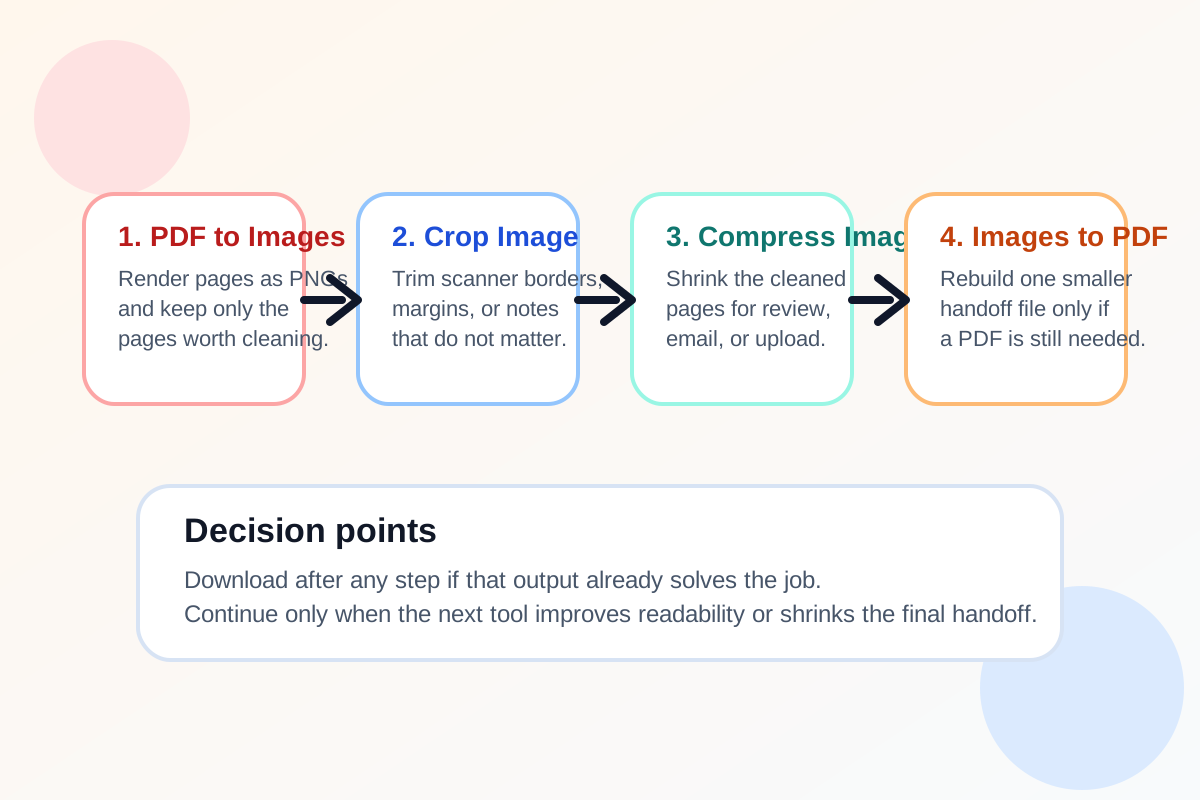
Some PDFs are technically fine but still awkward to send. A portal packet may include wide margins, scanner edges, or pages that only need quick visual review. In those cases, the right answer is not always to compress the whole PDF first. A better online workflow can start with the same intent behind many pdf to image converter searches: turn the pages into reviewable images, clean what matters, then rebuild only the lighter version you actually need.
The tool order
- Start with PDF to Images to render the source pages and confirm which pages are worth keeping.
- Continue to Image Cropper when the pages include scanner borders, extra white space, side notes, or visual noise that should not survive into the next file.
- Move to Image Compressor once the cropped images look right and need smaller upload-friendly file sizes.
- Finish with Images to PDF when the cleaned pages should become one downloadable handoff file again, which is the practical image to pdf converter step in this workflow.
When to stop and download
- Stop after PDF to Images if page PNGs are enough for a chat thread, ticket, or design review.
- Stop after Image Cropper if the real need is one cleaned screenshot or a few isolated page images.
- Stop after Image Compressor when the smaller images are the final deliverable for the channel you are using.
- Continue to Images to PDF only when the recipient still needs one document rather than separate images.
What to check after each step
- After PDF to Images: confirm the rendered pages are readable and that you are carrying forward only the pages that matter.
- After Image Cropper: confirm you removed noise without cutting off labels, signatures, totals, or page references.
- After Image Compressor: confirm small text, lines, and stamped marks still read clearly at the reduced size.
- After Images to PDF: confirm the rebuilt order is right and the smaller file still matches the intended review scope.
Why this works better than a single-step file-size fix
When people search phrases like pdf to image converter or image to pdf converter, the real problem is often control, not format for its own sake. Converting to images lets you remove visual clutter page by page. Rebuilding the PDF only after that cleanup usually creates a clearer and smaller result than trying to solve everything with one blanket compression step.
Related UtilFlow moves
If page selection is the bigger issue, use Extract PDF Pages first. If the final rebuilt file still needs numbering for approval rounds, continue into Add Page Numbers to PDF after the workflow is complete.
FAQ
When should I use this instead of a standard PDF compressor?
Use this chained workflow when page-by-page visual cleanup matters more than simple file-size reduction, especially when scanner borders or margins make the file feel heavier than it needs to be.
Why mention pdf to image converter and image to pdf converter in the same workflow?
Because many real jobs start by turning pages into images for cleanup and end by turning the cleaned images back into one smaller PDF for sharing.
Which tools are in this multi-step tool workflow?
The workflow uses PDF to Images, Image Cropper, Image Compressor, and Images to PDF in that order.