Extract the Needed Pages, Then Use a PDF to PNG Review Flow Before an Image to PDF Rebuild
Use a decision-oriented online workflow to isolate the right pages, turn them into reviewable images, shrink them, and rebuild only the smaller packet you still need.
Open Extract PDF Pages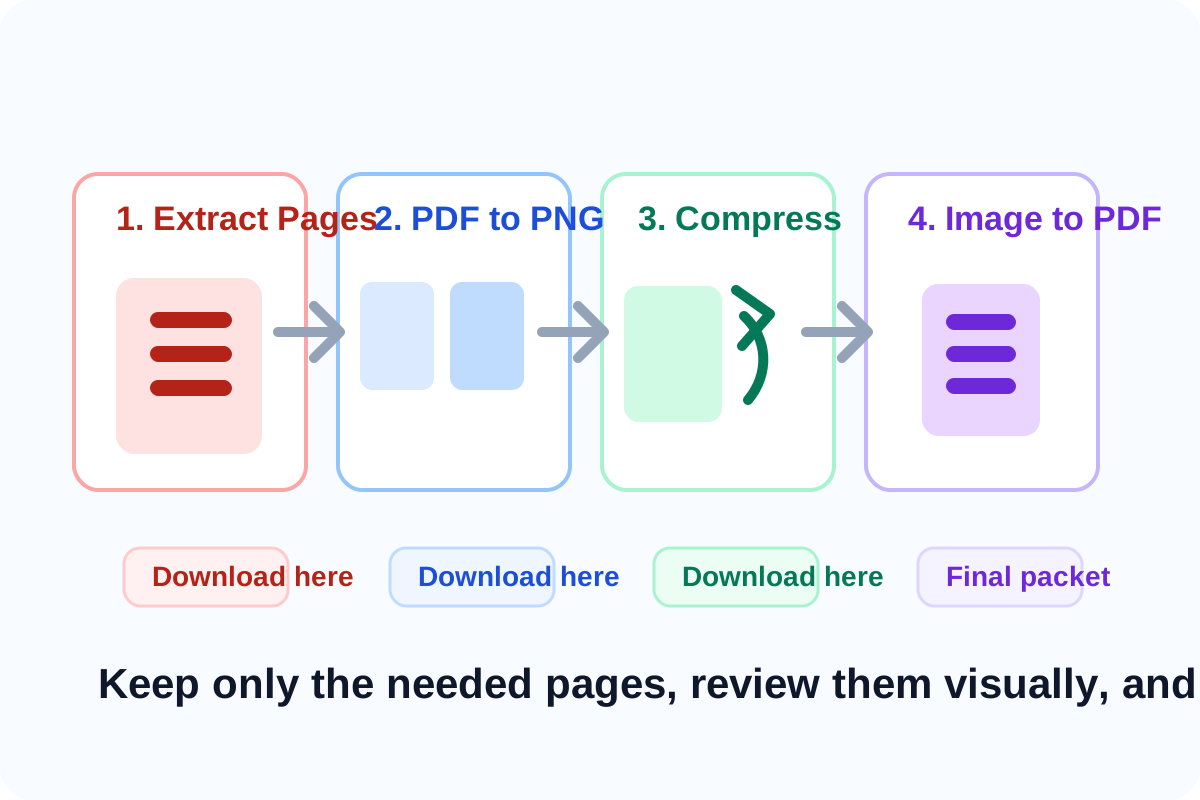
Many document packets are bigger than they need to be because the real job is smaller than the original file. An approver may only need five pages, a portal may only accept the final form pages, or a teammate may only need a visual review copy. That is why a better workflow often starts before the popular pdf to png step: isolate the right pages first, then decide whether those pages should travel forward as images or as a rebuilt PDF.
The tool order
- Start with Extract Pages so only the pages that matter move into the rest of the workflow.
- Continue to PDF to Images when reviewers need page visuals or when you want a practical pdf to png stage for lighter review.
- Move to Image Compressor if those page images are still too large for chat, email, or ticket uploads.
- Finish with Images to PDF only when the cleaned set still needs to return as one document, which is the practical image to pdf rebuild step.
When to stop and download
- Stop after Extract Pages if the smaller PDF is already the exact upload or handoff file you needed.
- Stop after PDF to Images if the real deliverable is page PNGs for annotation, review, or quick visual sharing.
- Stop after Image Compressor if the smaller images are the final files for the channel you are using.
- Continue to Images to PDF only when the recipient still expects one document instead of separate images.
What to check after each step
- After Extract Pages: confirm the selected page range is complete and in the right order.
- After PDF to Images: confirm each rendered page is readable and that the chosen pages are really the ones reviewers need.
- After Image Compressor: confirm that signatures, totals, labels, and fine text still survive the size reduction.
- After Images to PDF: confirm the rebuilt file is smaller, ordered correctly, and limited to the intended review scope.
Why this sequence is cleaner than compressing first
Compressing the whole packet first can leave you with a smaller version of the wrong document. Extracting pages first reduces noise, the pdf to png review stage makes the content easier to inspect, and the image to pdf rebuild happens only if the workflow still truly needs a document output.
Related UtilFlow moves
If the extracted packet still includes orientation issues, continue into Rotate PDF before the image stage. If the final rebuilt packet needs page numbering for approvals, move next to Add Page Numbers after the workflow is complete.
FAQ
Why start with Extract Pages before a pdf to png step?
Because isolating the needed pages first keeps the rest of the workflow smaller, faster, and less likely to carry forward irrelevant content.
When should I stop before the image to pdf rebuild?
Stop early whenever the output you already have solves the job, such as a smaller selected PDF, page PNGs, or compressed images for chat or ticket review.
Which tools are in this multi-step tool workflow?
The workflow uses Extract Pages, PDF to Images, Image Compressor, and Images to PDF in that order.